Variables: reuse values in tests
Project variables hold values your tests type or check, such as a search term or an email address. Write {{Variable Name}} in a step, an Expected Outcome or a start path, and Testmode fills in the value when the test runs.
A variable is a named value that test cases share, such as a search term, an email address or a message. Write it once under Settings > Variables, refer to it as {{Search Term}} in any test case, and change the value in one place when it changes.
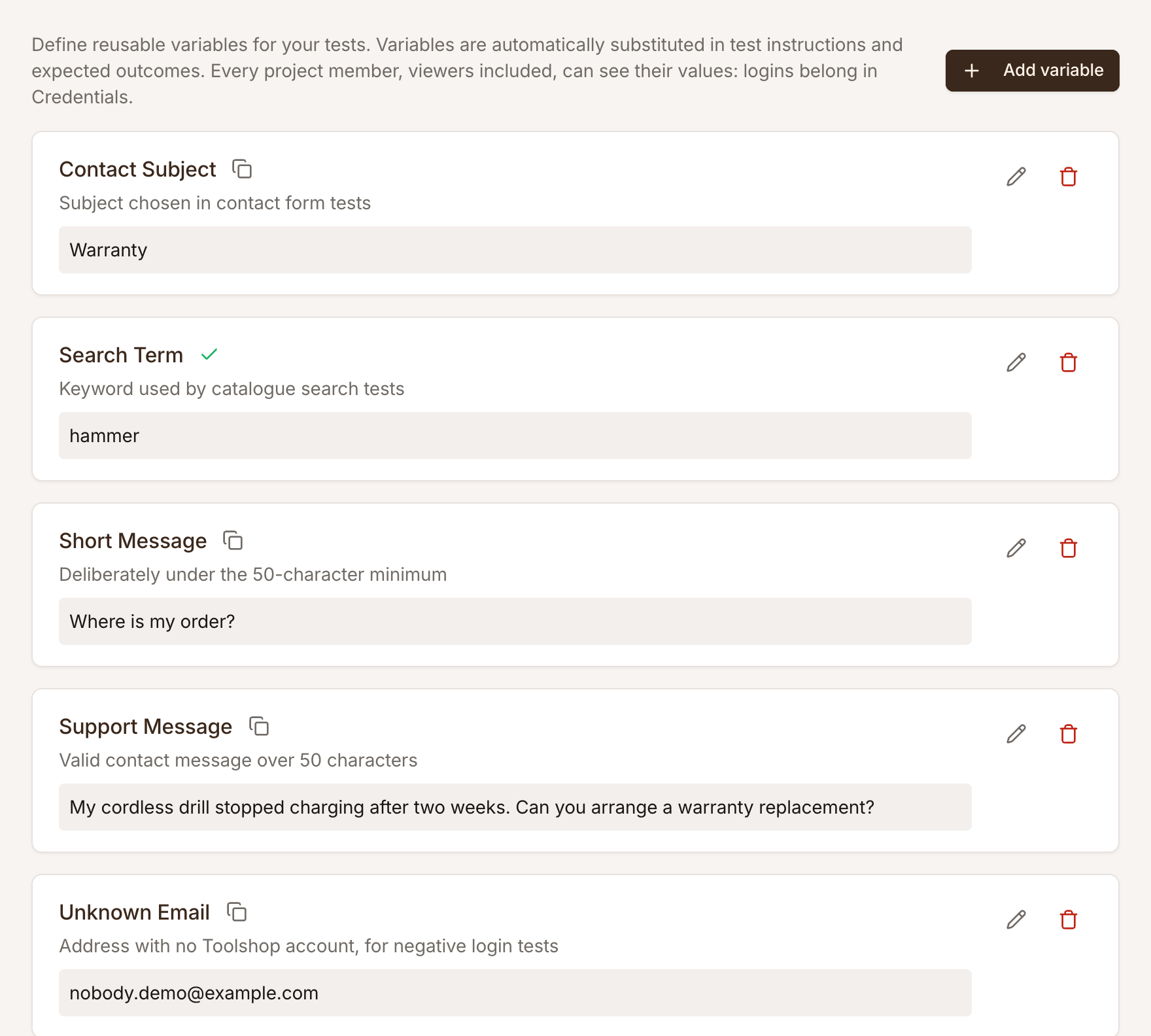
Add a variable
Section titled “Add a variable”-
Open Settings > Variables and click Add variable.
-
Enter a Name, such as
Search Term. Names start with a letter or underscore and may contain letters, numbers, spaces, dashes and underscores. -
Enter the Value, such as
hammer, and optionally a Description of what it’s for. -
Click Save.
Managing variables needs the Editor role or above. The copy icon next to a name copies {{Search Term}} to paste into a step.
Use a variable
Section titled “Use a variable”Write the name in double curly braces in a step, the Expected Outcome or the Start path:
Type {{Search Term}} into the "Search" field and click "Search".In the test case editor, Insert variable lists the project’s variables and inserts the one you pick; it shows as a chip with its current value. When the test runs, Testmode puts the value in its place.
Changing a variable’s value changes every test case that uses it, from the next run on. It doesn’t make Testmode work out a step’s browser operations again: they keep the variable as a placeholder and fill in the value as they run.
What variables are for
Section titled “What variables are for”Use variables for text a test types or checks: search terms, form input, addresses, messages, expected amounts.
Don’t use a variable as the name of something to click or choose, such as Click the {{Product}} link or Choose {{Country}}. Testmode finds the element to click from the step’s own words, and it can’t see a variable’s value at that moment, so it may click the wrong thing. Write such names out in the step: Click the "Slip Joint Pliers" link.
Variables are not secret
Section titled “Variables are not secret”Every member of the project, Viewers included, can read variable values, and the step timeline of a run shows the values that were filled in. Store passwords in a credential instead: nobody can read a credential’s password back. See Credentials and automatic login.
A test’s one-line summary goes further than the app: it is also sent in report emails, to CI logs and to AI agents. So it names each variable as {{Search Term}} rather than showing its value, and when a failure message quotes a value of four or more characters, that value is replaced by its name too.
Rename or delete a variable
Section titled “Rename or delete a variable”Renaming or deleting a variable doesn’t update the test cases that use it: their steps keep the old {{Search Term}} as plain text instead of a value, and will probably fail. The edit and delete dialogs say how many test cases use the variable before you confirm. To change what a variable stands for, edit its value instead.