Skip to content
testmode

What you can do with Testmode

With Testmode, you write end-to-end tests for your web app in plain English. Testmode runs them in cloud browsers, when you start them or on a schedule, and shows the evidence behind every verdict.

Each section below covers one capability and links to the guide that shows it. The examples come from a team at Pellbrook Digital testing the Toolshop, a public practice shop. The Toolshop is meant for testing, so even its production address is safe to run order and form tests against. On your own app, run those only on test environments.

A test case is a list of steps and an Expected Outcome, written the way you would explain the test to a colleague. There is no code, no selectors and no framework to set up.

Test case: Search finds hammers
1. Type {{Search Term}} into the "Search" field and click "Search".
2. Wait until the heading "Searched for:" appears above the products.
Expected Outcome: Every product card shown has "hammer" in its name,
in any letter case, "Thor Hammer" is one of them, and
"There are no products found." is not shown.
  • Reuse values. Variables such as {{Search Term}} are filled in from the project’s settings when the test runs.
  • Add details when you need them. Tags, a login credential, a Start Path and a Maximum duration (minutes) are optional.
  • Group tests. Put test cases into test plans, such as Storefront smoke or Checkout regression.

Learn more: Write a test case, Writing effective steps, and the general guide to natural language test automation.

Run them in a real browser against your own environments

Section titled “Run them in a real browser against your own environments”

An environment is a site your tests run against, such as production or staging. You choose the environment each time you run. A run can be a single test, a test plan or every enabled test case.

  • A fresh browser per test. Each test gets its own cloud browser and starts at the environment’s Base URL plus the test’s Start Path.
  • Tests run side by side. Tests in a run don’t share a browser and run in no set order, so write each one to work on its own.
  • Time limits you control. Each test stops at its time limit: 15 minutes by default, or 1 to 60 minutes set per test case or for the whole project. Testmode ends a test sooner when the agent stops making progress.
  • Credits shown up front. The Run tests dialog shows what a run will cost before you start it. Test cases with no steps and no Expected Outcome are skipped and cost nothing.
  • A visible place in line. While a test waits for a browser, the run page says why, for example “Next in line for a browser”.

Learn more: Environments, Run tests, How Testmode runs a test.

Store a test login once as a credential: a username, a password and an optional Login URL. Attach it to a test case, and Testmode logs the browser in before the test starts. Your steps can begin on a page that needs a signed-in user, such as /account.

  • One sign-in per credential. Testmode signs in once, saves the login, and starts later tests and explorations with that credential already signed in.
  • One session at a time, if your app needs it. For apps that allow one active session per user, limit the credential to one browser at a time.
  • Plans can swap the login. A test plan can use a different credential for one of its test cases, without changing the test case itself.
  • Passwords stay hidden. They are stored encrypted and are never shown again after you save them.

Learn more: Credentials and automatic login.

Every test ends Passed or Failed, and Testmode shows you why.

  • Watch live. While a test runs, the Live Browser View shows its browser.
  • Screenshots and reasoning. Testmode takes a screenshot after each browser action and records the agent’s reasoning next to it.
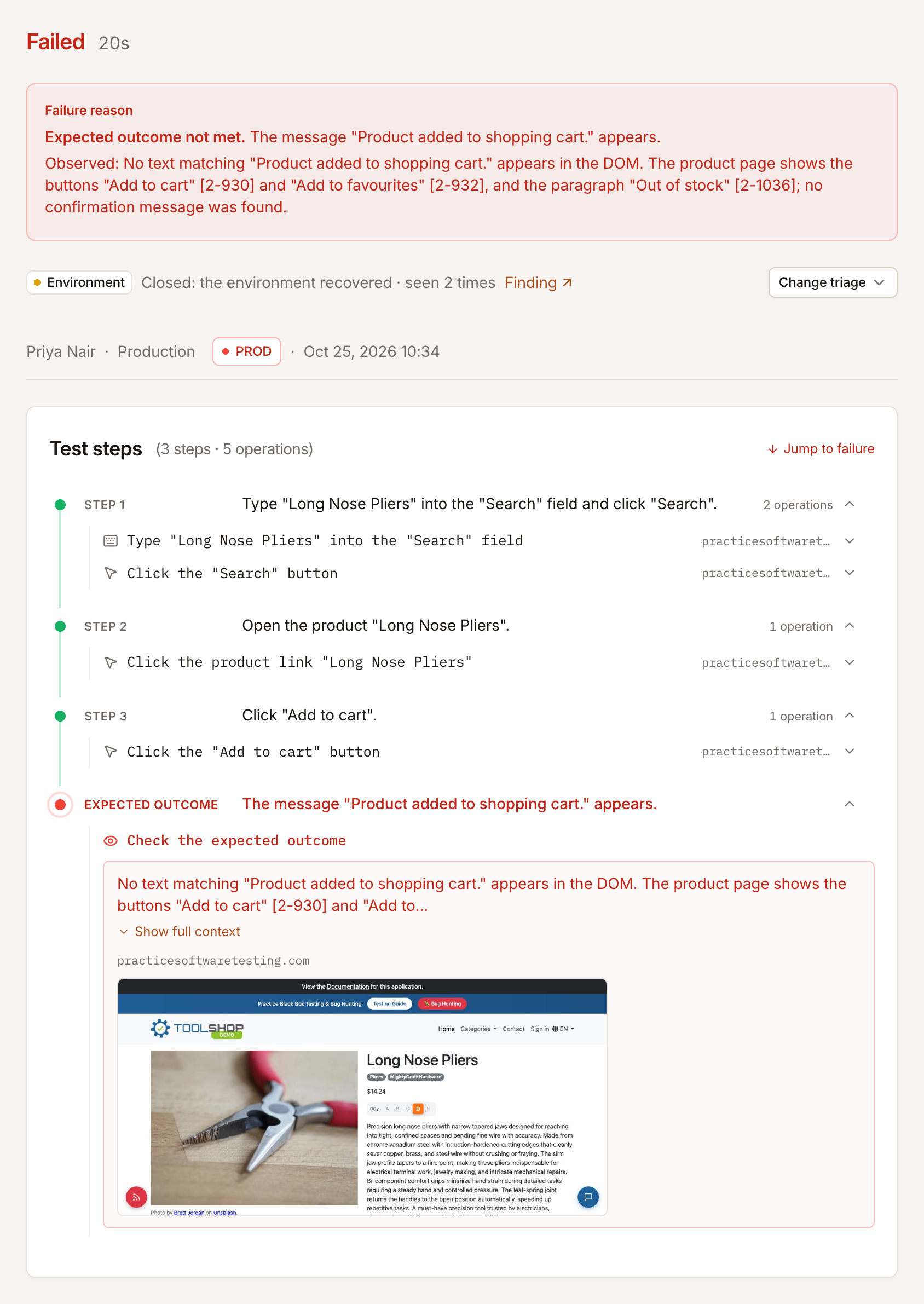
  • A written verdict. Passed tests get a summary. Failed tests get a Failure reason that says what didn’t match.
  • Browser logs. Finished tests show the console messages and network requests the page produced.
Screenshot viewer at step 4 of 5, showing a Toolshop product page with the Add to cart button, the action Click 'Add to cart button', the agent's reasoning that it is on the Slip Joint Pliers page, and a strip of thumbnails.
Step through every screenshot with the action and reasoning behind it.

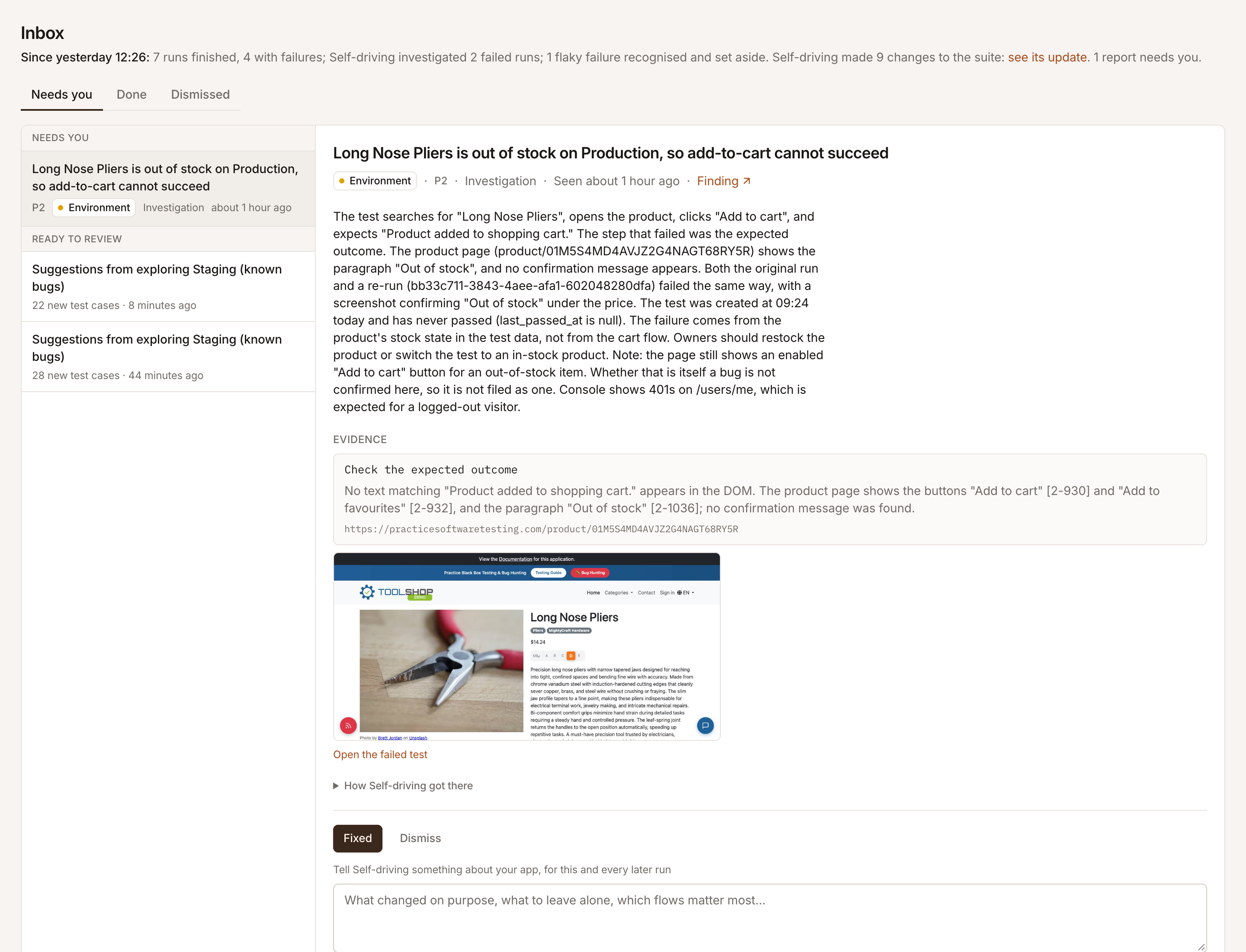
In this example, the Checkout regression plan includes a test that adds Long Nose Pliers to the cart. The product is out of stock on the Toolshop, so the agent’s attempts to add it left the page unchanged and Testmode stopped the test early. The Failure reason says it stopped early and names the product page, and the expanded steps show the Out of stock label and the agent’s note about it.

Learn more: Read run results, Console and network logs, What Testmode records.

A schedule runs a test plan against one environment hourly, daily, weekly or monthly, in the timezone you choose.

  • Email reports. Each schedule can email a report Only when a test fails, After every run or Never.
  • Reach the right people. Send reports to up to 20 addresses, including people outside your organization.
  • Hear about your own runs. On your Profile, Runs I start can email you when a run you started fails, or after every run.

Learn more: Schedule test plans, Email run reports.

Start an exploration and the exploratory agent visits your app page by page, up to a page budget you set. It compares what it finds with your existing tests, then proposes changes:

  • New test cases, and updates to existing test cases
  • Test cases to disable
  • New test plans, and test cases to add to plans
  • New variables
  • Recommendations, which are advice only

It also builds a coverage map of your app’s feature areas and writes a summary of what it found. You accept, edit or reject each proposal. Nothing changes in your test cases, plans or variables until you apply the accepted ones.

Learn more: Start an exploration, Review and apply proposals.

Build tests by chatting with the Assistant

Section titled “Build tests by chatting with the Assistant”

Open Assistant in the sidebar and describe the test you need. The Assistant looks up what the project already has, proposes a test case with steps and an Expected Outcome, and asks you to confirm before it creates it.

The Assistant can also:

  • Create test plans and variables
  • Add test cases to plans
  • Edit, disable or re-enable test cases
  • Start an exploration and report on its progress

Every role can ask the Assistant about a project. Creating or changing anything through it needs the Editor role or above.

Learn more: Create tests with the Assistant.

Invite teammates by email and give each one a role in your organization:

Role What they can do
Viewer Read tests, plans, settings and results. Viewers can’t start runs or change a project’s tests and settings.
Editor Create and edit test cases, plans, environments, credentials, variables and schedules, and start runs and explorations.
Admin Everything an Editor can do, plus invite members, rename the organization, delete projects and buy credits.
Owner Everything in the organization.

Learn more: Roles and permissions, Manage your organization.

Testmode is built for web apps, and it has clear limits:

  • Web apps only. Testmode doesn’t test native mobile apps, desktop apps or APIs.
  • Reachable from the internet. Your app must be reachable from the public internet. localhost, VPN-only sites and intranets are out of reach.
  • Username and password login. Automatic login uses a username and a password. One-time codes, CAPTCHAs, and signing in with Google or SSO are not supported.
  • Desktop-sized browser. There is no mobile emulation and no choice of browser or device.
  • Up to an hour per test. A test runs for at most 60 minutes. Split longer journeys into several test cases.
  • Started from Testmode. Runs start from the app or from a schedule. There is no CI, API or deploy-hook trigger.

Learn more: What Testmode can and cannot test, Limits.