Schedule test plans
Run a test plan automatically every few hours, daily, weekly or monthly, on the environment you choose, with optional report emails. How timezones, pausing, skipped runs and Self-driving’s schedules work.
A schedule runs a test plan automatically on one environment: every few hours, every day, on chosen weekdays or once a month. A plan can have several schedules, for example a nightly run on staging and a weekly run on production.
Schedules come with every paid plan; on the Free plan, runs start only when you start them.
Add a schedule
Section titled “Add a schedule”-
Open the plan from Test plans and select its Schedules tab.
-
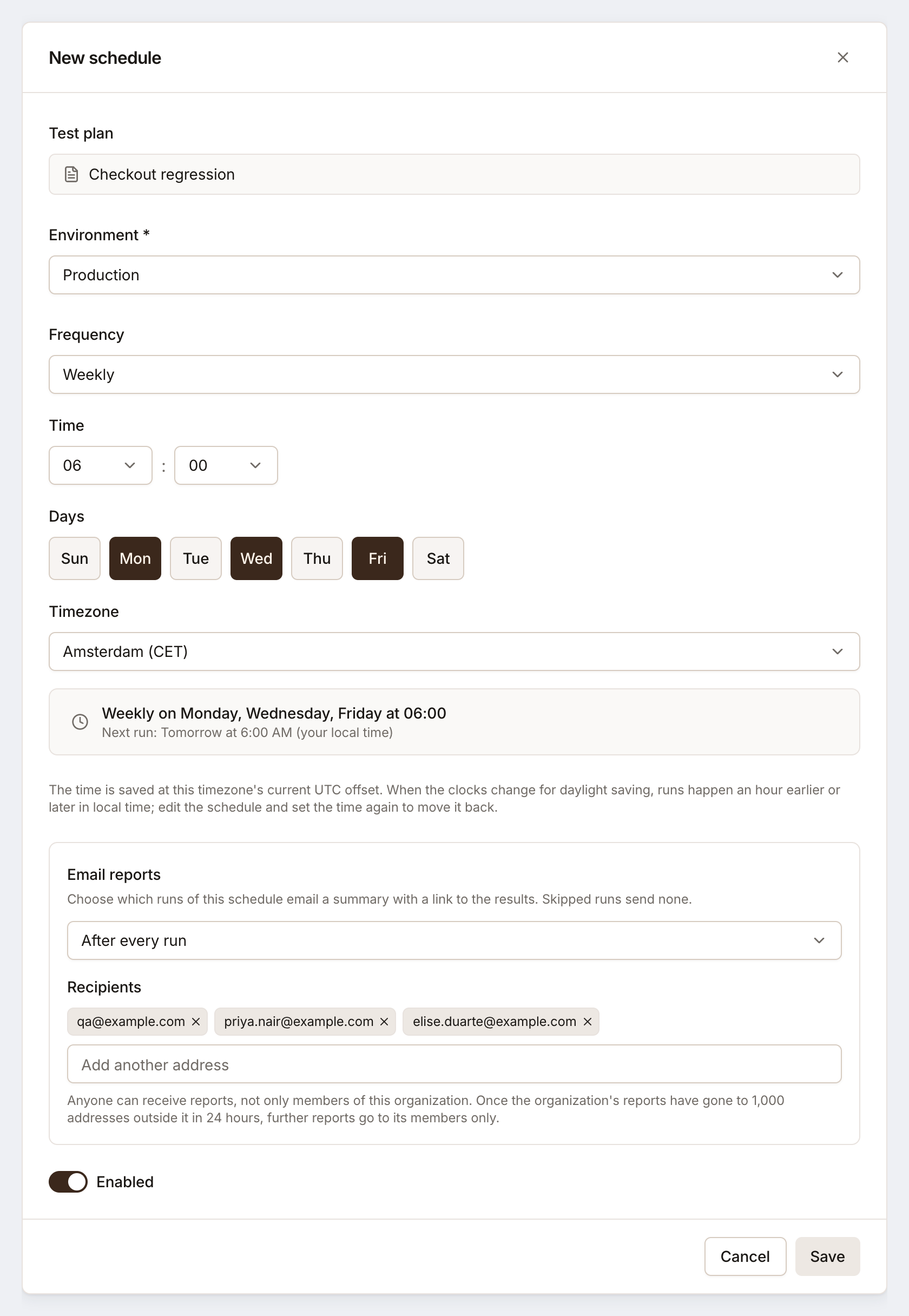
Click Add schedule. The New schedule dialog opens.
-
Choose the Environment to run against.
-
Choose the Frequency and its time (see below), and the Timezone you think in.
-
Under Email reports, choose who gets an email after each run, and when.
-
Leave Enabled on and click Save.
Managing schedules needs the Editor role or above. Viewers see a plan’s schedules but can’t change them.
Frequency
Section titled “Frequency”| Frequency | Settings |
|---|---|
| Hourly | Run every 1, 2, 3, 4, 6, 8 or 12 hours |
| Daily | A time of day, on the hour or at :15, :30 or :45 |
| Weekly | A time and one or more days of the week |
| Monthly | A time and a Day of month from 1 to 28 |
The dialog sums the schedule up in words and shows the next run, for example “Weekly on Monday, Wednesday, Friday at 06:00. Next run: today at 6:00 AM (your local time)”.
Timezones and daylight saving
Section titled “Timezones and daylight saving”Pick the timezone you think in; the times you enter are in that zone. Testmode stores a schedule as a fixed time in UTC, worked out from the zone’s offset on the day you save. When the clocks change for daylight saving, runs happen an hour earlier or later in local time. Edit the schedule and set the time again to move it back.
A schedule written another way, for example through the API, opens as a custom schedule in UTC. It is saved back unchanged unless you pick a new frequency.
Report emails
Section titled “Report emails”| Email reports | Sends a report |
|---|---|
| Never | Never |
| After every run | When every run finishes |
| Only when a test fails | When a run has at least one failed test |
Add the Recipients one address at a time. Anyone can receive reports, not only members, unless the organization limits email domains; then only those domains receive them. Skipped runs send no report. See Email run reports.
Schedules Self-driving sets
Section titled “Schedules Self-driving sets”With Self-driving on, a review may schedule the plans it builds, for example Smoke every few hours on staging and a daily check of production. The schedules of all your organization’s projects may use at most 70% of its monthly credits, so your own runs and CI always have room. Each schedule it creates or changes is listed under Activity, with Undo, and you can edit or switch it off here like any other.
Pause, edit or delete a schedule
Section titled “Pause, edit or delete a schedule”- Pause: switch the schedule off on the Schedules tab. It keeps its settings and doesn’t run until you switch it on.
- Edit: click its pencil to change anything; the change applies from the next run.
- Delete: removes it for good. To keep the settings, switch it off instead.
Schedules belong to their plan: deleting the plan deletes its schedules. A plan with no test cases left can’t run, so its schedules stop until you add some.
When a scheduled run is skipped
Section titled “When a scheduled run is skipped”A schedule that fires but can’t start a run records a Skipped run with the reason, so you see in Runs that it didn’t happen and why:
- Not enough credits for the whole plan.
- Nothing to run: every test case in the plan is switched off or empty.
- The previous run of this schedule is still in progress. A schedule doesn’t stack runs: while its last run is queued or running, the next one is skipped. A run that has been going longer than its tests could take counts as stuck and no longer blocks the schedule.
- Testing is paused for the project. See Pause testing and protect data.
- The organization is on Free, which doesn’t include schedules: its schedules keep their settings, and skip until it has a plan again.
When a schedule keeps skipping for the same reason, the skips are counted on one row in Runs, for example “Skipped 12 times in a row”, rather than one row each.
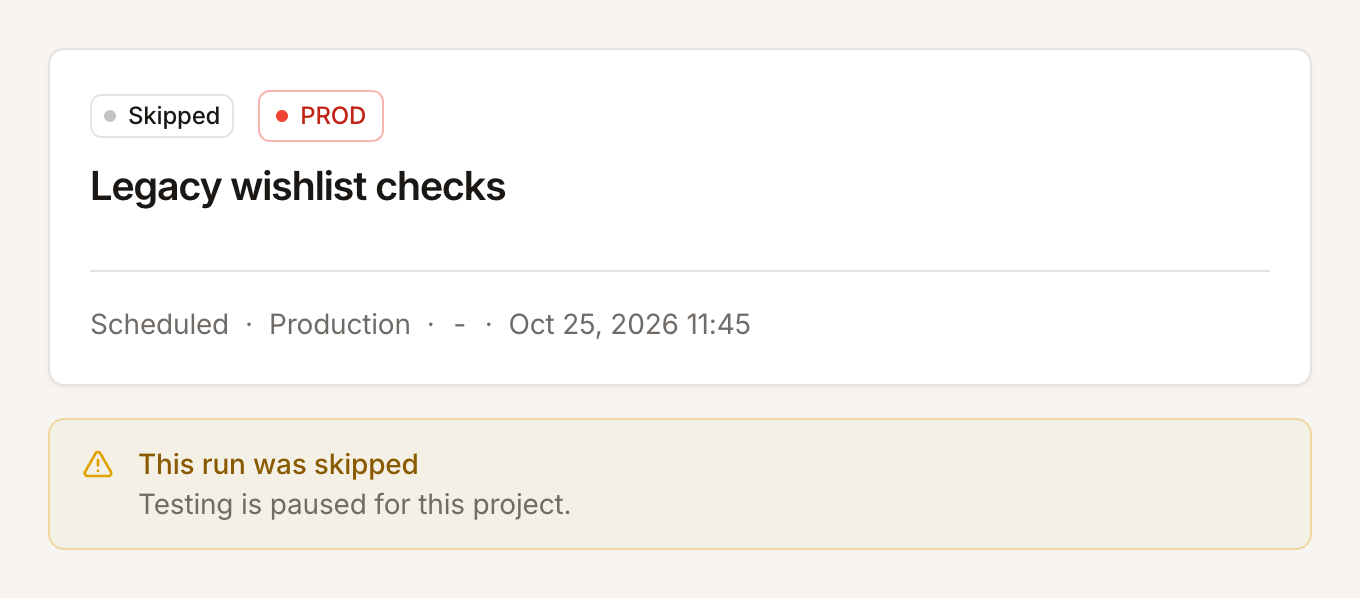
Skipped runs use no credits and send no report email.