API keys
Create a Testmode project API key for CI pipelines and AI agents, choose its expiry, store it as a secret, and revoke it. What a key can do, its rate limit and how it follows its creator’s role.
A project API key lets a CI pipeline or an AI agent use Testmode’s API for one project. Keys start with tmk_.
Create a key
Section titled “Create a key”-
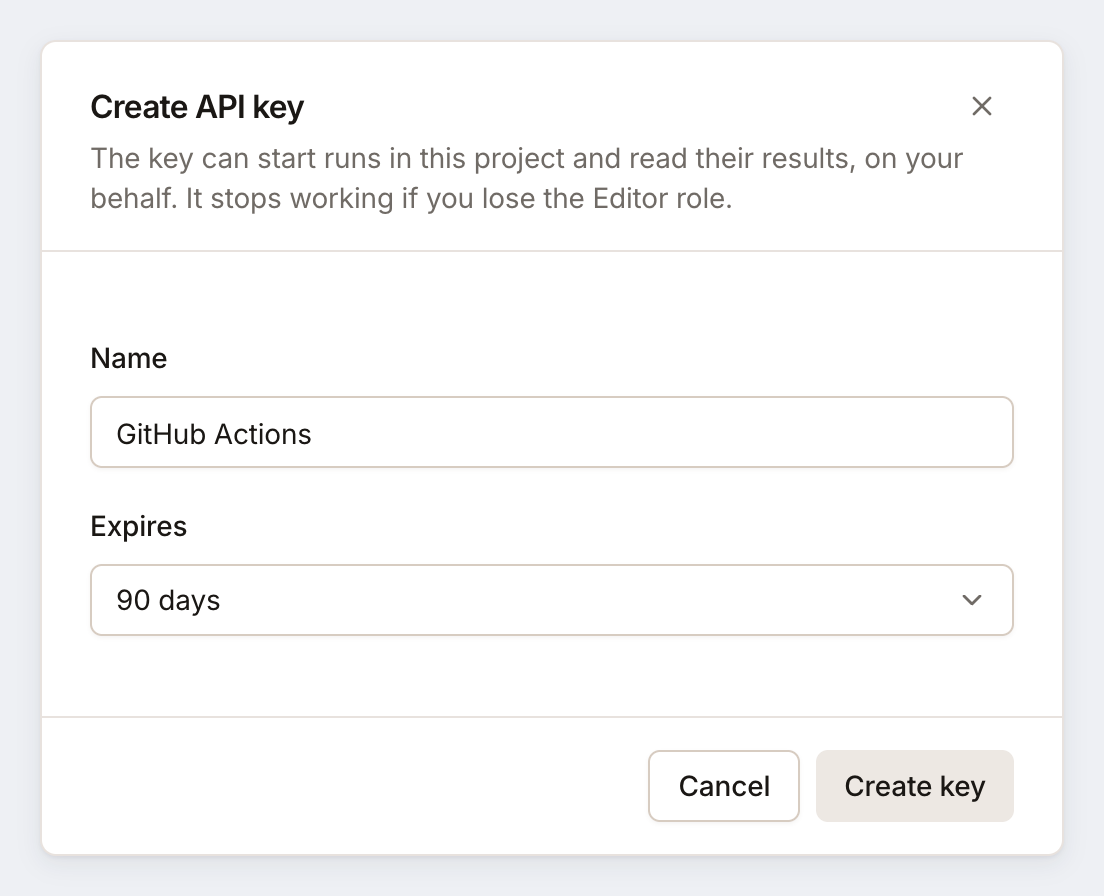
Open Settings > API & CI and click Create API key.
-
Give it a name that says where it is used, such as
GitHub ActionsorNightly Jenkins. -
Choose when it expires: 30 days, 90 days, 1 year or never. The default is 90 days.
-
Click Create key, and copy the key.
Creating and revoking keys needs the Editor role or above. Every project member sees the list: each key’s name, its prefix (such as tmk_Yz3AP4I8…), when it was created and last used, and when it expires.
Use a key
Section titled “Use a key”Send it in the Authorization header:
curl https://api.testmode.ai/v1/project \ -H "Authorization: Bearer $TESTMODE_API_KEY"X-Api-Key: tmk_… works too. The GitHub Action and the MCP snippets on API & CI show where to put it.
What a key can do
Section titled “What a key can do”A key works in its own project only, and acts for the member who created it, with less than that member may do: it reads the project’s environments, test plans, test cases and runs, and starts runs. It can’t read credentials or variable values, change tests, or create other keys.
Rate limit
Section titled “Rate limit”A key allows 60 requests a minute, shared by every pipeline and agent that uses it. A waiting CI job polls every 15 seconds, so give pipelines that run many jobs at once their own keys. Over the limit, the API answers 429 with a Retry-After header.
A key follows its creator
Section titled “A key follows its creator”A key works only while the member who created it is an Editor, Admin or Owner of the organization. When that member is removed or made a Viewer, their keys stop working for good; rejoining doesn’t bring them back. Create keys for pipelines as someone who will stay, and replace them when people leave.
Revoke a key
Section titled “Revoke a key”Click the trash icon on the key and confirm. It stops working at once and can’t be restored. To replace a key without breaking CI, create the new key, update your CI secret, then revoke the old one.
Related
Section titled “Related” testmode
Better software quality. No manual testing. Your team knows the software. Testmode does the testing.