Skip to content
testmode

Troubleshoot automatic login

Two failure reasons point at automatic login. “Login failed: …” means Testmode could not sign in before the test started. “Session expired or login required” means the test was signed in but met a login page during the test. This page shows how to fix both.

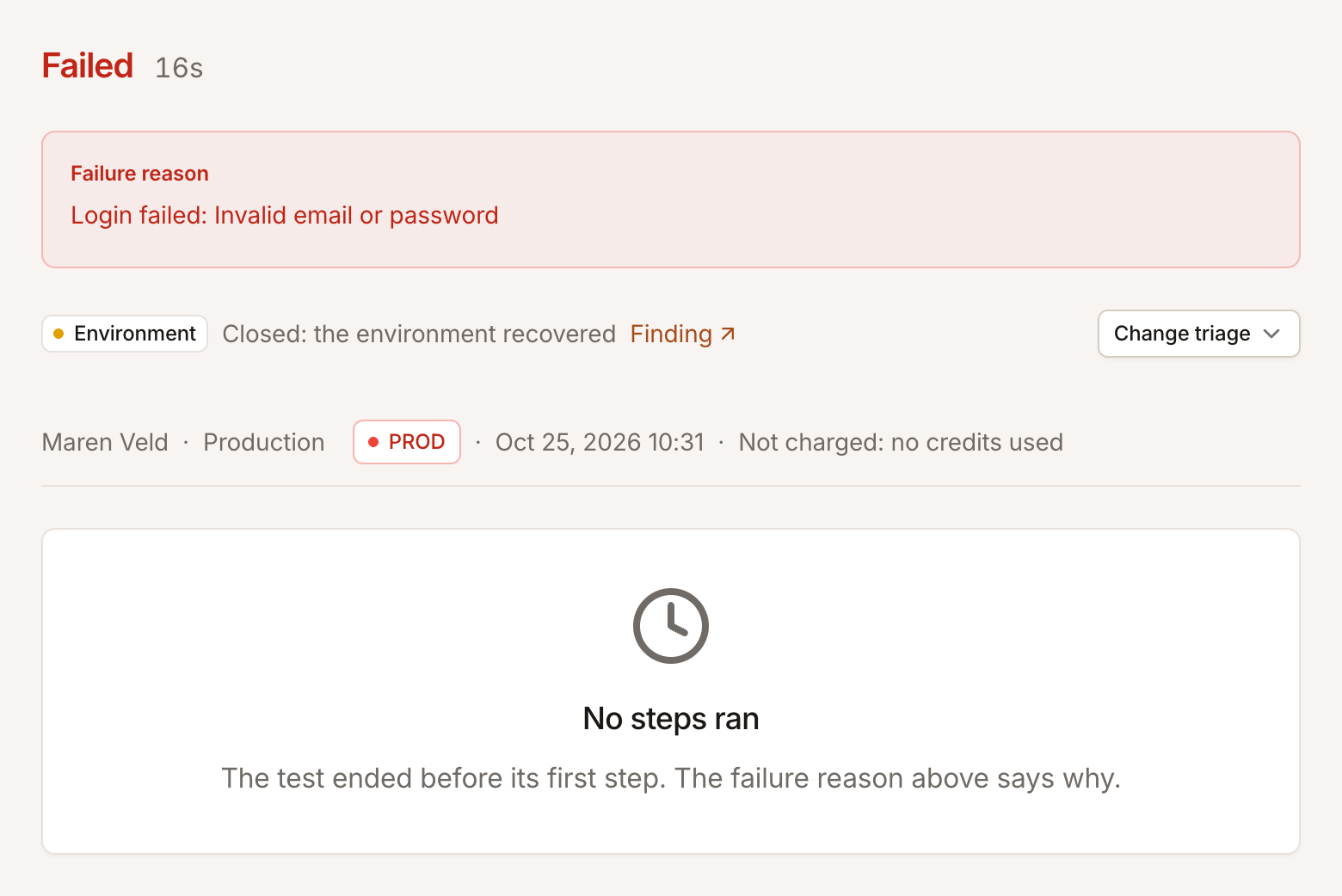
When Testmode cannot sign in with the test’s credential, the test fails before any step runs:

  • The test is Failed, and the Failure reason starts with “Login failed:”, followed by the login agent’s explanation.
  • Test Steps shows “No Steps Recorded”.
  • The username and password are removed from the message.
  • The credits reserved for the test are returned.
  • Testmode does not retry a failed login. Fix the cause, then run the test again.
Failed test with a Login failed reason in which the username and password are redacted, and an empty step list reading No Steps Recorded.
When login fails, no steps run, and the reason is shown without the username or password.

In the demo workspace, “Sign-in lands on My account” was run once with a credential for nobody.demo@example.com, an address the Toolshop doesn’t know. The Toolshop refused the login, so the test failed with “Login failed:” and no steps ran.

Work through these checks. Changing a credential needs the Editor role or above.

  1. Read the explanation. The text after “Login failed:” is the login agent’s own account of what went wrong, such as an error message on the form or a missing login form. “Login failed: Login timed out after …” means signing in took longer than Testmode allows for one login, usually because the login page is slow or never finishes loading.

  2. Check the username. Open Settings > Credentials and click the pencil on the credential. Username must be exactly what the login form expects, for example an email address rather than a display name.

  3. Enter the password again. Passwords can’t be viewed, so type it into Password (leave blank to keep current) and click Save Changes. Leading and trailing spaces are removed when you save. Saving a password also clears the credential’s saved login, so the next test signs in with it.

  4. Check the Login URL. See Check the Login URL below.

  5. Sign in by hand once. Use the same test account in your own browser, on the same environment, to confirm it works and doesn’t ask for a code or a CAPTCHA.

  6. Run the test again. Start a Single test run for the test case from the Run tests dialog.

This reason means a test with a credential reached a login page or sign-in prompt during the test. The agent is told the test is already signed in and not to log in itself, so it stops and fails instead. Testmode does not retry the test automatically, and the test’s credits are kept because the test ran.

If the test had started on the credential’s saved login, Testmode also discards that saved login, so the next test with the credential signs in again.

Cause Fix
The steps sign in, or click a sign-out link Remove login steps; the credential handles login. Say what not to click, as in Do not click "Sign out".
The start page looked signed in, but the saved login had ended (see below) Set the test case’s Start Path to a page that clearly shows the signed-in state.
The app allows one active session per user, and signs out other browsers that use the same login Set the credential’s Parallel browser sessions to 1, so tests with that login run one at a time. See Credentials and automatic login.
The app signed the user out during the test Keep tests short, and check the session length in the environment you test.
The test moved to a part of the app on another domain that needs its own sign-in See Logins on another domain.

How Testmode decides you are signed in. After a credential signs in, Testmode saves that login: the browser’s cookies and the site’s local and session storage. Later tests and explorations with the credential start with it loaded. Each one opens the test’s start page (the Base URL plus the Start Path, not the Login URL) and looks for clear signs that the user is signed in, such as an account name, a profile icon or a sign-out link. Without clear signs, Testmode discards the saved login and signs in again in the same browser. If the start page looks signed in while the login has in fact ended, Testmode skips signing in, and the test meets a login page later.

Only one test signs in with a credential at a time. Other tests with the same credential stay Queued with “Waiting for another test to sign in with the same credential” or Waiting for the login on credential "…", then reuse the new login.

On the Toolshop, “Sign-in lands on My account” starts on /account, where the header shows the customer’s name instead of “Sign in”. That leaves no doubt.

A credential’s Login URL decides where Testmode signs in when there is no working saved login:

  • When it is set, Testmode opens that page to sign in, for example https://practicesoftwaretesting.com/auth/login. Point it at the page that shows the login form.
  • When it is blank, Testmode signs in at the test’s start page: the environment’s Base URL plus the test case’s Start Path. The agent then has to find a sign-in link on that page first.

A Login URL is a full address, so it does not follow the environment you run against. If a credential’s Login URL is on your production site and you run the test on staging, Testmode signs in on production and the test on staging is likely to meet a login page. For several environments, create one credential per environment, each with its own Login URL.

A saved login after you change a credential

Section titled “A saved login after you change a credential”

Testmode keeps one saved login per credential and reuses it while the test’s start page still shows the user as signed in. What happens to it when you edit the credential depends on the field:

You change The saved login
Username, or you type anything into the password field and save Is cleared. The next test signs in with the new details.
Only Name, Login URL or Parallel browser sessions Is kept. Tests go on using it while it still works.

What this means for you:

  • If the new username or password is wrong, the next test fails straight away with “Login failed:”, so you find out on the next run.
  • After changing only the Login URL, tests keep using the old saved login until it stops working. To make the next test sign in on the new page, enter the password again and click Save Changes.

To switch a test to another account without touching the credential other tests use, create a new credential and select it as the test case’s Login Credential, or as the Credential Override in a test plan. Then delete the old credential if you no longer need it.

Automatic login is built for a username and password form on your site. If signing in hands off to another domain, such as a single sign-on provider or “Sign in with Google”, it is not guaranteed to work. Google sign-in and SSO are not supported as test flows.

The Toolshop’s login page also offers “Sign in with Google”. The “Jane Doe – demo customer” credential signs in with the email and password form instead.

For apps that only offer SSO, use a test account that can sign in with a password in the environment you test.

Testmode can’t complete these:

  • MFA and one-time codes. Testmode has no way to receive a code from an authenticator app, SMS or email.
  • Magic links and email verification. Tests can’t read email.
  • CAPTCHA. Testmode does not solve CAPTCHAs.

If the login page asks for any of these, the login can’t finish and the test fails. Use a test account without MFA, and turn CAPTCHA off in the environment you test. See What Testmode can and cannot test.

When login fails before a test starts, the credits reserved for that test are returned automatically. The billing history on the Billing tab shows “Refund (test did not run)”, linked to the run. The test still shows Failed.

“Session expired or login required” is different. It happens after the test has started, so its credits are kept. See How credits work.