Group tests into test plans
A test plan is a named group of test cases that run together and can be scheduled. Create one, add and remove test cases, and run, duplicate or delete the plan. Self-driving can build plans for you.
A test plan is a named group of test cases from one project, such as Storefront smoke or Checkout regression. Run a plan and all its enabled test cases run together, each in its own browser, each signing in with its own test case’s login. Plans are also what schedules run.
Create a plan
Section titled “Create a plan”-
Open Test plans and click New test plan.
-
Enter a name, and optionally what the plan covers.
-
Tick the test cases to add, or add them later.
-
Click Create test plan.
Managing plans needs the Editor role or above. A test case can be in any number of plans.
The plan page
Section titled “The plan page”Click a plan to open it. It has two tabs:
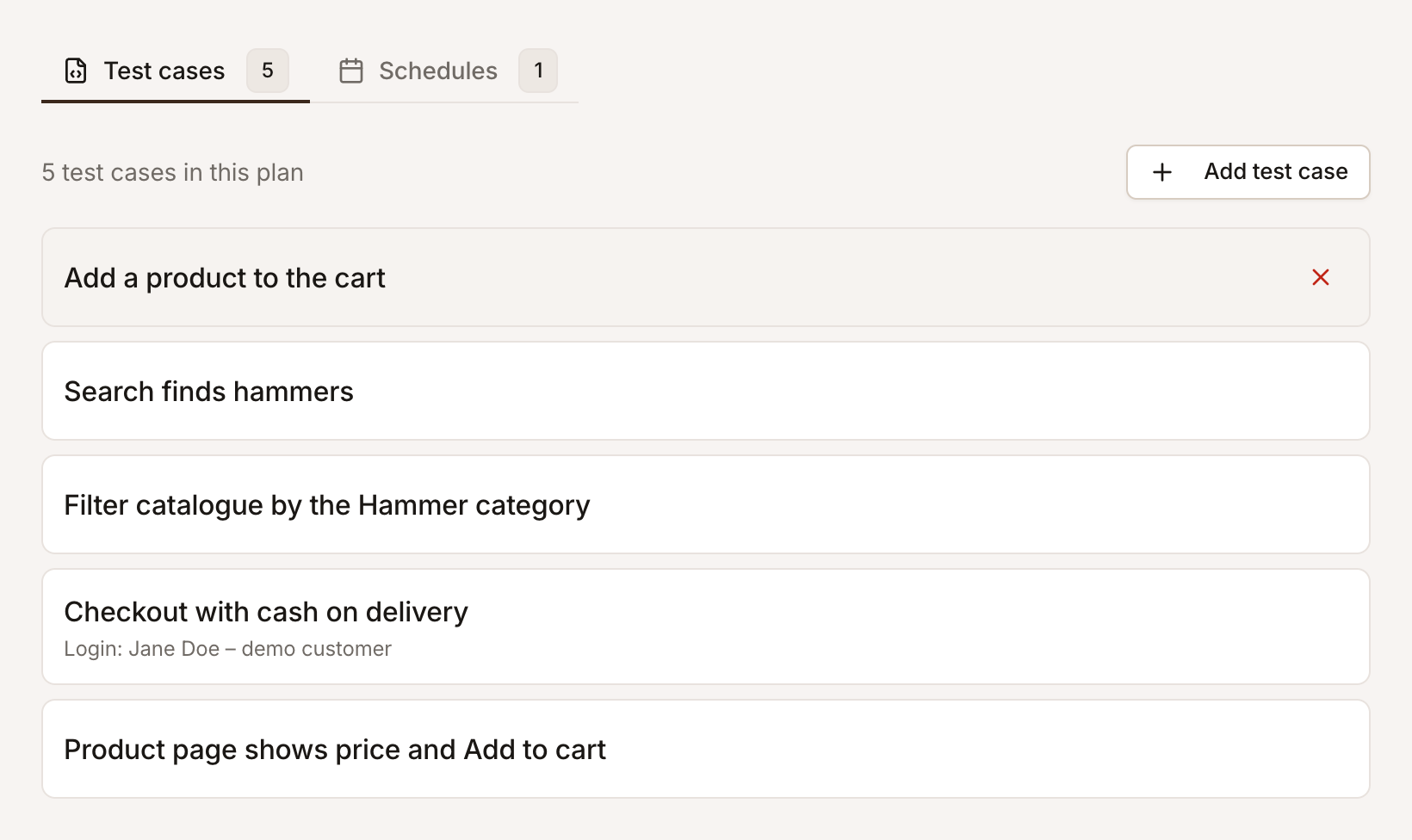
- Test cases: the test cases in the plan. Click Add test case to add more, and Remove from this plan on a row to take one out (the test case itself is kept).
- Schedules: when the plan runs automatically. See Schedule test plans.
Run a plan
Section titled “Run a plan”On the plan’s page, click Run test in the header: the Run tests dialog opens with the plan chosen. Or choose Run from the plan’s ⋯ menu on Test plans. Every enabled test case in the plan with steps or an Expected Outcome becomes one test in the run; switched-off ones are left out, and on a production environment, so are tests marked Changes data unless it allows them. See Run tests.
When a plan’s run fails and Self-driving is on, it investigates the failures. See How Self-driving investigates failed runs.
Duplicate, rename or delete a plan
Section titled “Duplicate, rename or delete a plan”The ⋯ menu on a plan’s row in Test plans has:
- Run to start a run of it.
- Edit to rename it or change its description.
- Duplicate to copy it with its test cases, as a starting point for a similar plan.
- Delete to remove it. The confirmation says what depends on it: its schedules are deleted too, so they stop running and their report emails stop, and API and CI jobs that start it by name or id fail. To stop its scheduled runs but keep the plan, switch its schedules off instead.
Deleting a plan never deletes its test cases.
Plans Self-driving builds
Section titled “Plans Self-driving builds”With Self-driving on, a review groups tests in plans by purpose: Smoke for the critical journeys, Regression for everything worth running regularly, and a plan of its own only for a group with its own reason to run, such as a daily check of production. It schedules them within your credits. Each plan, membership and schedule it creates is a change under Activity, with Undo. See How Self-driving works.
Plans or tags?
Section titled “Plans or tags?”| Use a plan when | Use a tag when |
|---|---|
| The set runs together, on a schedule or from CI | You want to filter the list or slice the suite |
| You want a run history for the set | The grouping cuts across many plans |
| Self-driving should keep it up to date | You want a quick ad-hoc run from CI by tag |