See what Self-driving did
Self-driving’s Activity page lists everything it did, newest first: reviews with every change they made to your test suite, investigations of failed runs, explorations and questions. Undo a change, stop a review, or start an exploration of your own.
Activity is Self-driving’s record. It shows what Self-driving is doing now, and below it everything it did, newest first. Nothing here waits for you: what does is in the Inbox.
Open it with Activity in the sidebar’s Self-driving section, or press G then A.
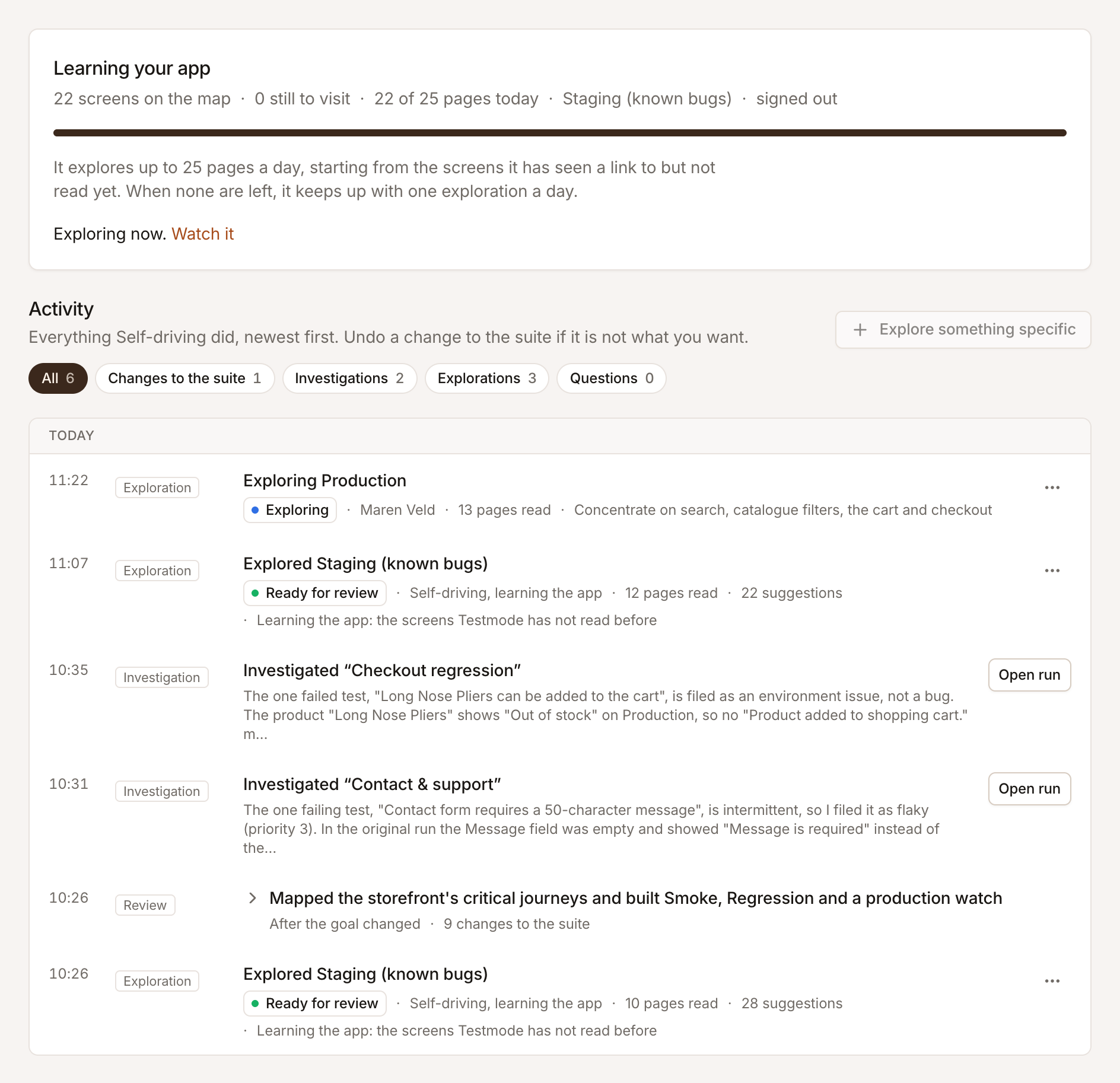
What it is doing now
Section titled “What it is doing now”The card at the top says which phase Self-driving is in and what it knows so far:
- Learning your app: how many screens are on the map, how many it has seen a link to but not read yet, how many of the day’s pages it has used, the environment and the login. A bar shows how much of what it knows of it has read.
- Keeping up with your app: one exploration a day, from screens that changed, new links, the first screens of important journeys and the screens it has not seen for longest.
- Mapping your app: after Map everything now, one exploration after another until it has read every screen it found a link to.
While an exploration runs, Watch it opens it. When something keeps Self-driving from exploring (testing is paused, the plan does not include it, credits ran out, its environment was deleted) the card says why.
When Self-driving is off, the card offers Set it up or Turn it on instead. See Turn on Self-driving.
The list
Section titled “The list”Each row has a time, a kind and a title. Filter the list with All, Changes to the suite, Investigations, Explorations or Questions.
| Kind | Title, for example | What the row offers |
|---|---|---|
| Review | What the review did, or Reviewing the project… while it works | Click the title for its update and its changes to the suite; Stop while it works |
| Investigation | Investigated “Checkout regression” | Its verdict in short; Open run; Stop while it works |
| Exploration | Exploring Staging or Explored Staging | Its status, who started it, pages read, suggestions; a menu with View or Review proposals, Stop exploration and Delete |
| Question | Asked: … | Answer, or Open once answered |
A review’s facts say why it ran: After the goal changed, After an exploration, Asked for, After a deploy, The app changed or Weekly review.
Undo a change to the suite
Section titled “Undo a change to the suite”Click a review’s title to open its update: Self-driving’s account of what it did, and under Changes to the suite each change on its own line, such as a test case it added, a fix to a test’s steps, a test it switched off, a plan it created or a schedule it set. Schedules read in your own time zone.
Undo next to a change puts back what was there before. You need the Editor role or above.
- An added test case is deleted, or switched off when it has already run, so its results stay.
- A changed test case is back as it was.
- A test case it switched off is switched on again.
- A plan it created is deleted; its test cases stay.
- A test case it added to a plan is taken out again, and one it took out is put back.
- A schedule it created is deleted, and one it changed is back as it was.
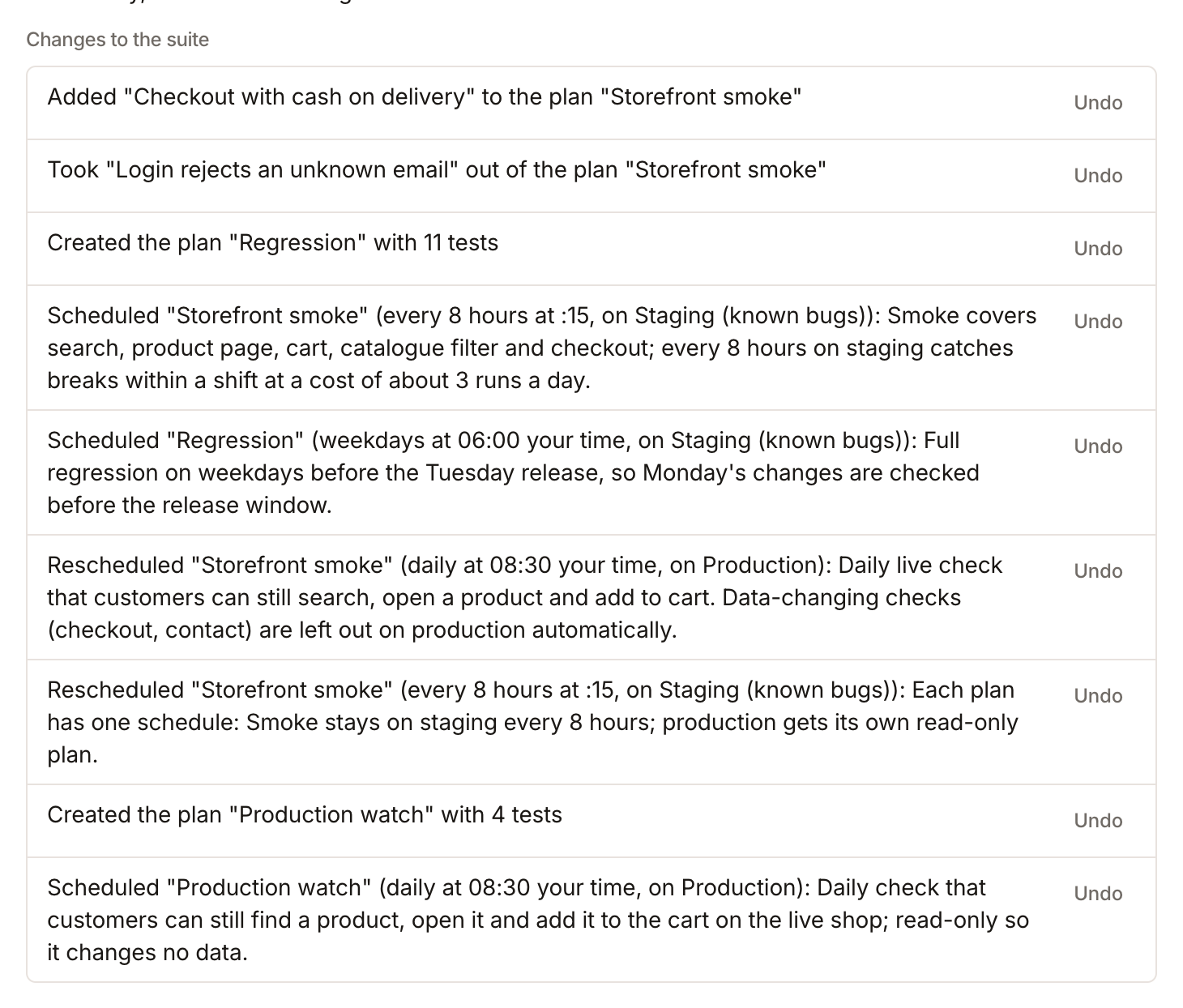
An undone change is struck through and marked Undone.
You can also undo from the test case itself: a test case’s editor lists Self-driving’s changes to it, each with Undo. On Test cases, the Last change column says who changed each test case last, and test cases Self-driving wrote this week are marked New.
Start an exploration yourself
Section titled “Start an exploration yourself”Explore something specific opens the new exploration panel, to explore one area now with the settings of your choice, for example a new checkout flow on staging. It is disabled while an exploration is running. See Start an exploration.