Ask the assistant
The Testmode assistant is a chat beside every page: it writes test cases, plans, schedules and variables, explains your suite, reads pages of your site, starts explorations, and speaks for Self-driving. It saves changes only after you confirm.
The assistant is a chat about the current project, open beside any page. Describe what you want to test in your own words, and it drafts test cases with steps and an Expected Outcome, asks you to confirm, and saves them. It can also organize plans and schedules, set up variables, explain your suite, look at pages of your site, start explorations, and answer for Self-driving: what the map says, what needs you, what the goal is.
Open it
Section titled “Open it”-
Click Ask in the header, or press CmdJ. The assistant opens on the right.
-
Type what you need, or pick a suggestion such as “Which journeys have no test yet?”.
-
Press Enter to send; Shift+Enter starts a new line.
New chat starts over. Your conversation is your own: other members don’t see it.
An example
Section titled “An example”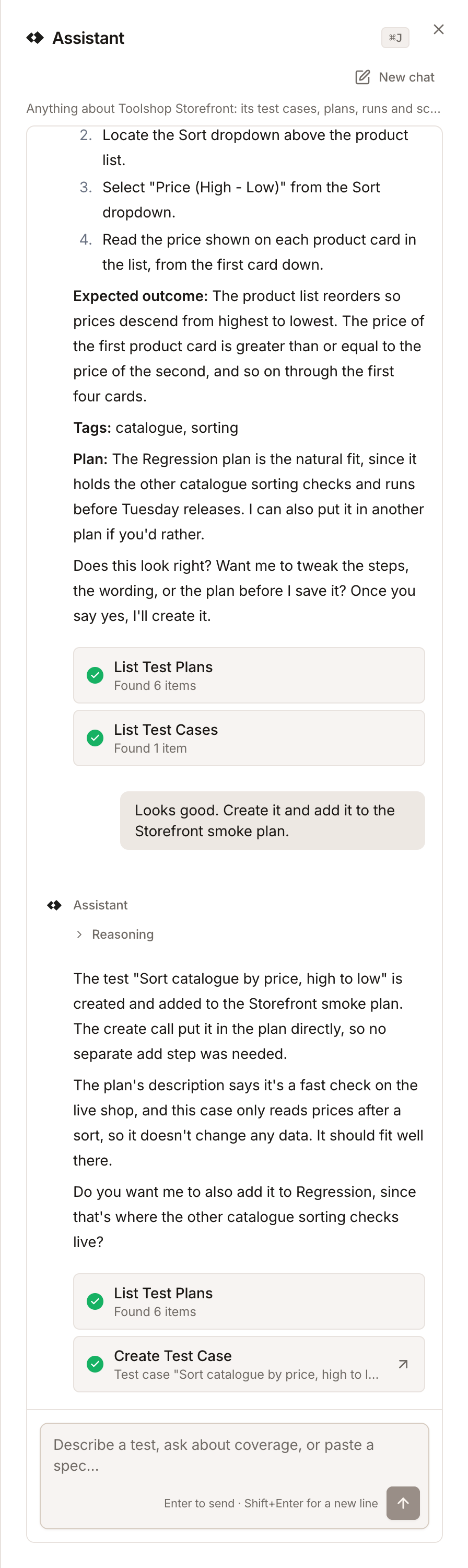
- You: “I need a test case for sorting the Toolshop catalogue by price, highest first. On the home page there is a Sort dropdown above the product list with the option ‘Price (High - Low)’.”
- Assistant: proposes a name, steps and an Expected Outcome, and asks whether to save it.
- You: “Looks good. Create it and add it to the Storefront smoke plan.”
- Assistant: creates the test case and adds it to the plan. Each action appears as a card; the card for a created test case links to it.
What it can do
Section titled “What it can do”| Ask it to | It |
|---|---|
| Write a test case | Drafts the name, steps, Expected Outcome, start path, tags and login, and saves it after you confirm |
| Change a test case | Reads it, proposes the change and saves it after you confirm |
| Switch a test case off | Does so after you confirm |
| Organize plans | Creates plans and adds test cases to them |
| Schedule a plan | Lists, creates and changes a plan’s schedules; deleting one stays in the app |
| Set up variables | Creates variables, such as a test email address |
| Explain your suite | Lists test cases, plans, environments, credentials and variables, and summarizes them |
| Look at your site | Fetches a page of one of your environments, to write steps that match its labels |
| Explore | Starts an exploration, reports on it, and adds the suggestions you agree to |
| Talk about the app | Reads the map, the Inbox and the goal: which journeys have no test, what needs you |
| Steer Self-driving | Sets the goal, asks for a review, answers its questions, closes Inbox items and adds notes |
| Pause testing | Pauses or resumes the project’s schedules, CI runs and Self-driving, after checking with you |
It sees variable names, never their values, and credential names, never passwords. It refers to a variable as {{Name}} and lets the test fill in the value.
It doesn’t start test runs: run what it creates from Run tests.
Ask about an Inbox item
Section titled “Ask about an Inbox item”In the Inbox, Ask about this opens the assistant on the item you have open. Two tabs sit at the top:
- This item: a conversation about that item, which everyone in the project sees. Ask what a failure means, answer a question in your own words, or have the assistant fix the test.
- Everything: your own conversation about the whole project.
Get better results
Section titled “Get better results”- Name the labels on the page, as in the example: the button’s text, the field’s label, the message that appears. Or ask it to look at the page first.
- Say where the test starts and whether it needs a login.
- Read the draft before you confirm. It saves exactly what it showed you.
- Ask for one test per behaviour. “A test for the empty search state” works better than “test search”.
Fetching pages
Section titled “Fetching pages”The assistant can fetch a page of one of your environments to see its text and labels. It fetches only public addresses on your environments’ sites, reads the page as plain HTML without running its scripts, and treats what it reads as data, not instructions. For pages that need JavaScript or a login, ask it to start an exploration instead.
Roles, credits and limits
Section titled “Roles, credits and limits”- Editors and above can send it messages. Each message costs 5 credits, so Viewers read the conversations about Inbox items but don’t send messages.
- Every plan includes it, Free too.
- Rate limits: 20 messages per person per minute and 60 per hour, and 300 per organization per hour. On Free: 3 a minute and 15 an hour per person, and 30 an hour per organization.