Review and add exploration suggestions
Review what an exploration suggests: new test cases, changes to existing ones, cases to switch off, plans and variables. Untick what you don’t want, edit the rest, and add them to your suite in one go.
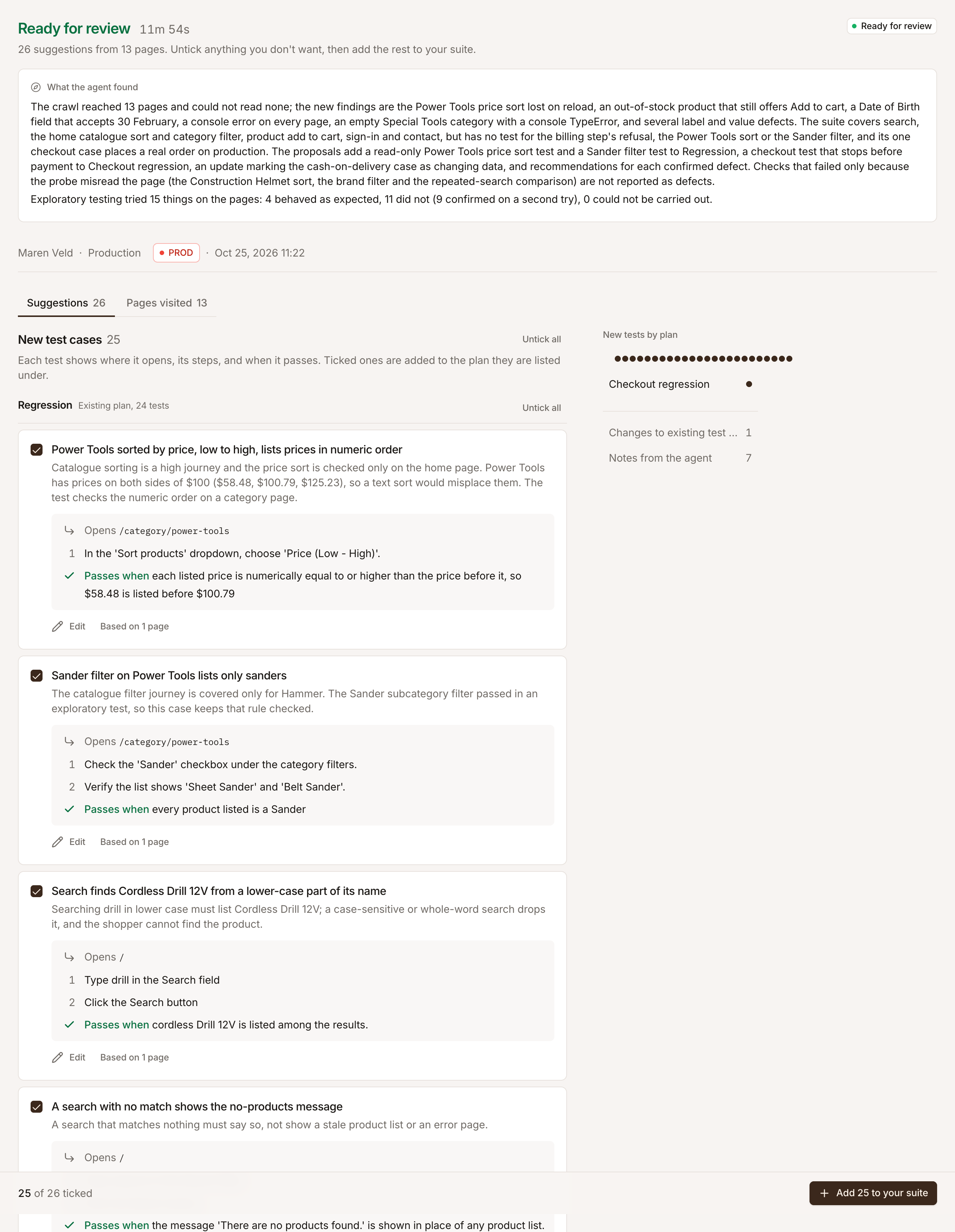
When an exploration is Ready for review, its Suggestions tab lists what the agent proposes. Every suggestion has a checkbox: ticked ones are added to your suite when you click Add to your suite, unticked ones are declined.
Open it from the Inbox, where an exploration with suggestions waiting shows with Review suggestions, from Self-driving’s Activity, or from the banner on Test cases. With Self-driving on and allowed to make changes, its review may already have added the suggestions that serve your goal; what it left is here for you.
What the agent suggests
Section titled “What the agent suggests”Suggestions are grouped:
| Group | What it does | Starts |
|---|---|---|
| New test cases | Creates a test case with its steps, in the plan shown on it | Ticked |
| Changes to existing test cases | Rewrites a test case whose steps no longer match the app | Unticked |
| Test cases to switch off | Switches off a test case for a feature that is gone | Unticked |
| New test plans and Additions to test plans | Creates a plan, or adds test cases to one | Ticked |
| New variables | Creates a project variable | Ticked |
| Notes from the agent | Advice, such as a risk it noticed or a defect its tests confirmed, with steps to reproduce. Never written to your suite | No checkbox |
Anything that only adds starts ticked; anything that changes what you have starts unticked, so nothing you already have changes unless you tick it. A new test case that types a {{variable}} also starts unticked: check where its steps type the value before you tick it.
Tick all and Untick all work per group.
Review a suggestion
Section titled “Review a suggestion”New test cases are listed under the plan they go into, such as Regression (an existing plan) or a new one. Each card says why the agent suggests it, then where it opens, its steps and when it passes (its Expected Outcome), and the login it signs in with and the variables it types, when it has them. Then:
- Details, on a change to an existing test case, compares the test case as it is now with what the suggestion writes, and says so if the test case changed after the exploration.
- Edit opens the same editor as on Test cases. Saving your edit ticks the suggestion.
- Based on N pages jumps to the pages it came from on Pages visited.
- New tests by plan, beside the list on a wide screen, jumps to each plan’s group.
Every suggested test case names a plan, so a batch never leaves loose test cases behind. Plans are designed by why they run: Smoke for the critical journeys, Regression for everything worth running regularly, and a plan of its own only for a group with its own reason to run; feature areas are tags. Change the plan in Edit. A new plan named like one that exists is that plan, not a second one.
One change per test case. Two changes to the same test case, or a change and a switch-off, can’t both be ticked, because each rewrites the whole test case. Ticking one unticks the other, and both cards say so.
Add them to your suite
Section titled “Add them to your suite”-
Untick what you don’t want, and edit what needs changing.
-
Click Add N to your suite, or Apply N changes when a change or switch-off is ticked.
Everything ticked is written in one go: test cases with their steps, changes, switch-offs, plans and their test cases, and variables. Unticked suggestions are recorded as declined. Added cards say so and link to what they created.
A ticked suggestion that can no longer be added is declined too, and the message names it: its test case was deleted meanwhile, a variable of that name exists, or an earlier suggestion in the batch already changed its test case. A login deleted since the exploration is left off the test case instead.
A declined suggestion can still be ticked and added later, here or by asking the assistant. While suggestions wait, the Test cases page shows a banner with their number, and the Inbox lists the exploration. Archive in the Inbox declines what is left.
Explorations don’t make the same suggestion twice: a suggestion waiting for review or declined earlier is not made again.
Check what you add
Section titled “Check what you add”Page text is data the agent reads, and on sites where users write content, such as reviews, comments or tickets, someone could word it to steer the suggestions. The agent is told to describe the interface rather than copy what users wrote. Still, read the steps of what you add, above all on sites that show user content.