Email run reports
Get an email when a run finishes or fails: per schedule for scheduled runs, and per person for the runs you start in the app, through the API or from an AI agent. What a report contains and who can receive one.
Testmode can email a run report when a run finishes: the verdict, each test with its result, and a link to the run. Reports are set in two places, depending on who started the run.
| Runs started by | Reports are set | Recipients |
|---|---|---|
| A schedule | On the schedule, under Email reports | The addresses listed on the schedule |
| You, in the app, through an AI agent, or with an API key you created | On your Profile, under Runs I start | You |
Reports for scheduled runs
Section titled “Reports for scheduled runs”-
Open the plan, select Schedules, and click the schedule’s pencil (or Add schedule).
-
Under Email reports, choose After every run or Only when a test fails.
-
Under Recipients, type each address and press Enter.
-
Click Save.
Never turns reports off for the schedule. Skipped scheduled runs never send a report.
Reports for runs you start
Section titled “Reports for runs you start”-
Click your name at the bottom of the sidebar, then Profile.
-
Under Email notifications, set Runs I start to Email me when a test fails or Email me after every run.
-
Click Save.
The report goes to your account’s address when the run finishes. This covers runs you start in the app or through an AI agent you connected, and runs started with API keys you created. Don’t email me turns it off.
What a report contains
Section titled “What a report contains”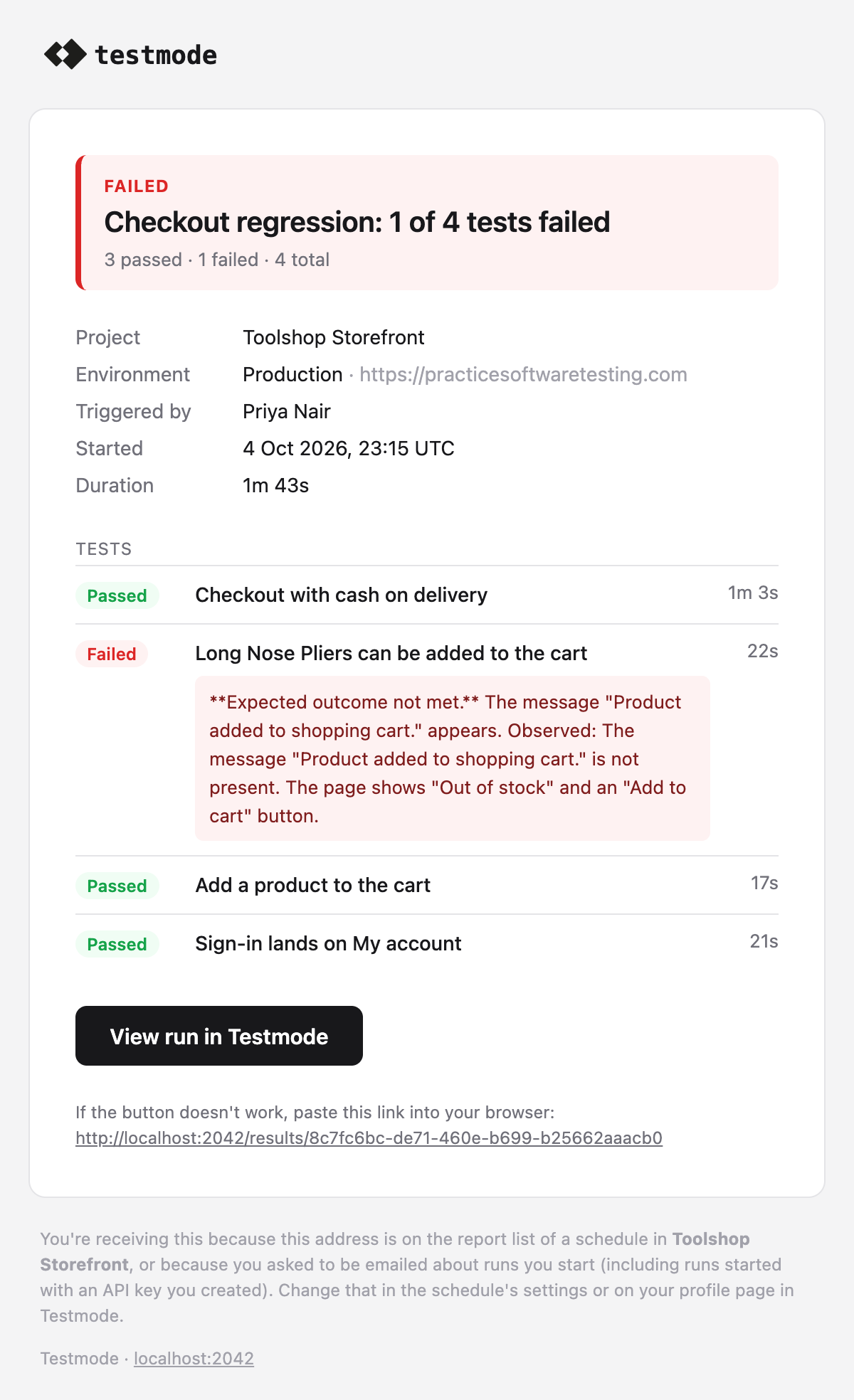
- The verdict in the subject and at the top, such as “Checkout regression: 1 of 4 tests failed”.
- The project, environment, who or what started the run, when, and how long it took.
- Each test with its result and duration. A failed test shows its reason.
- View run in Testmode, a link to the run page with the session replays and logs.
Reports name variables as {{Variable Name}} instead of their values, because reports may go to people outside the project.
Other emails
Section titled “Other emails”- Credit alerts: Owners and Admins are emailed when the organization has used 80% of a period’s credits, and again when they are gone, with what happens next. See Plans and billing.
- Self-driving doesn’t email. What it needs from you is in the Inbox, and in Slack if you connect it. See Connect Slack.
Who can receive reports
Section titled “Who can receive reports”- Anyone with an email address, not only members of the organization, unless the organization limits email domains. Then only addresses on those domains receive reports, and others are left out. See Manage your organization.
- A safety limit applies to addresses outside the organization: once its reports have gone to 1,000 such addresses in 24 hours, further reports go to members only.
- Each recipient gets their own email. The footer says why they are receiving it and where to change that.