Sign up and sign in
Create a Testmode account with an email code or Google or GitHub, sign in, reset a forgotten password, accept an invitation to an organization, and sign out.
One Testmode account works in every organization you belong to: one email address, one password, one profile.
Create an account
Section titled “Create an account”-
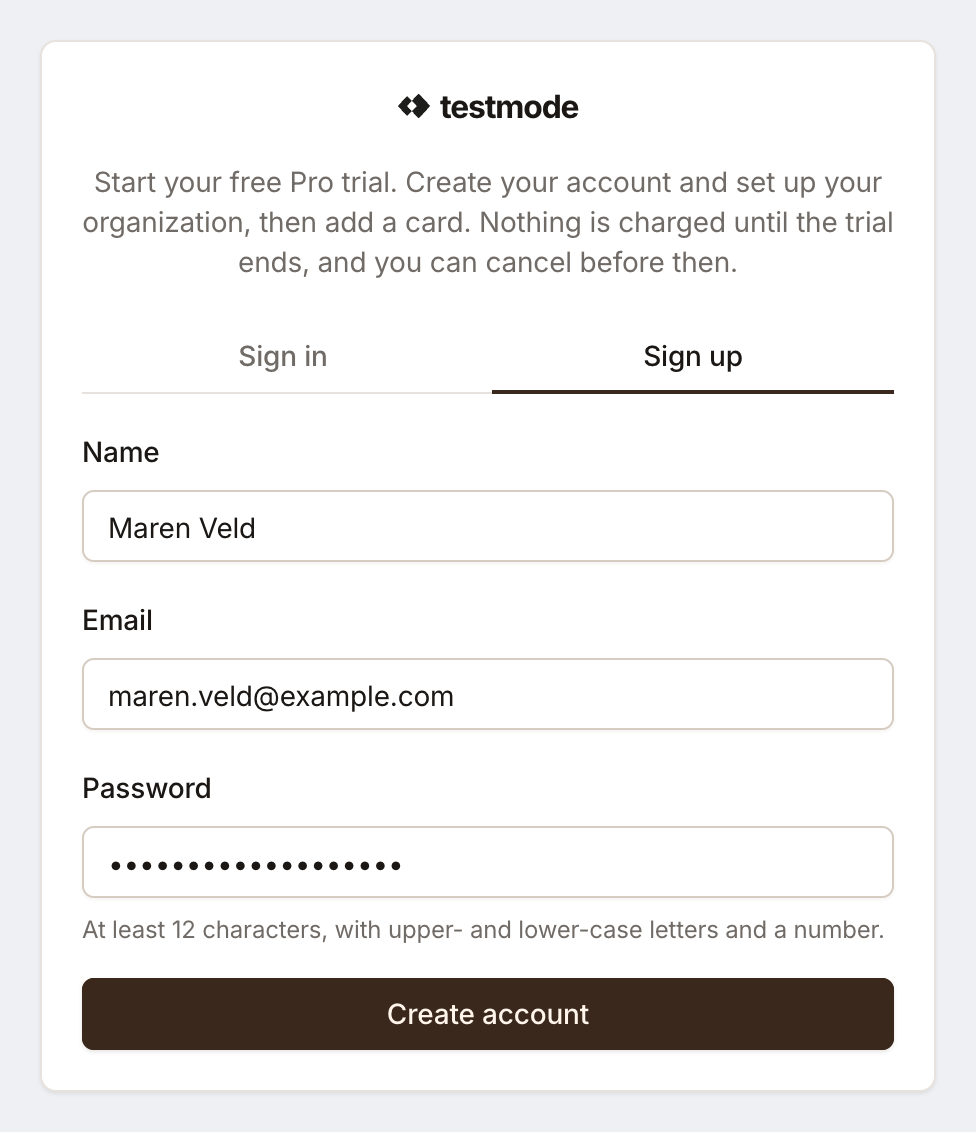
Open app.testmode.ai/signup, or click Start free on testmode.ai’s Pricing page (the Free plan, no card) or Try for free (the 7-day Pro trial).
-
Enter your Name, Email and Password. The password needs at least 12 characters, with upper- and lower-case letters and a number.
-
Click Create account.
-
Type the 6-digit code Testmode emails you on the Verify your email page. It can take a minute to arrive; check your spam folder if it doesn’t. Under Didn’t receive a code?, Request a new code sends another one after a short wait.
Once your address is confirmed, Testmode signs you in and walks you through setup: your organization, inviting your team, your first project and your plan. See the Quickstart.
A sign-up link from the pricing page carries the plan you chose. Start free skips the plan step: your organization starts on Free. Try for free, or a plan’s own button, opens that plan’s checkout after setup. Without a plan in the link, setup ends with Choose your plan, where Skip for now, start on Free is always an option.
A short security check runs in the background on the sign-up, sign-in and password reset forms. While it runs, the form says the check is still running; try again in a moment.
Continue with Google or GitHub
Section titled “Continue with Google or GitHub”Where Continue with Google and Continue with GitHub are shown, you can use them instead of a password, for signing up and for signing in. The account is the one for that provider’s email address. No code is needed, because the provider has confirmed the address.
Sign in
Section titled “Sign in”Open app.testmode.ai, enter your Email and Password on the Sign in tab, and click Sign in. An address that isn’t confirmed yet is sent to the Verify your email page for a code.
If the code doesn’t work
Section titled “If the code doesn’t work”- “That code is wrong or has expired”: a code works once, and only until a newer one is sent, so type the one from the newest email. Codes also expire after 15 minutes; request a new one.
- No email: it can take a minute. Check your spam folder, then request a new code.
- “Too many attempts from this network”: wait a few minutes before trying again.
Reset your password
Section titled “Reset your password”-
On the Sign in tab, click Forgot password?, enter your email address and click Send code.
-
Type the 6-digit code from the email. It works in any browser.
-
Enter a New password, repeat it under Confirm password, and click Update password.
Once the new password is saved, every other place you were signed in is signed out, connected apps included. API keys you created keep working; if someone else may have used your account, revoke them under Profile.
This is also how you change your password while signed in: sign out, then use Forgot password?.
Accept an invitation
Section titled “Accept an invitation”An invitation email has a link that opens Sign up with your address filled in. Create your account and confirm it with the 6-digit code, or switch to Sign in if you already have one. Then:
- Join with the organization’s name, for example Join Pellbrook Digital, makes you a member with the role you were invited as, and switches to that organization.
- Not now skips it in this browser. The link keeps working until the invitation expires, after 7 days.
Signed in with a different address than the one invited, joining fails with a message saying so, and offers Sign out and use the invited account. Nothing joins you to an organization by itself: you always click Join.
Sign out
Section titled “Sign out”Click your name at the bottom of the sidebar and click Sign out.