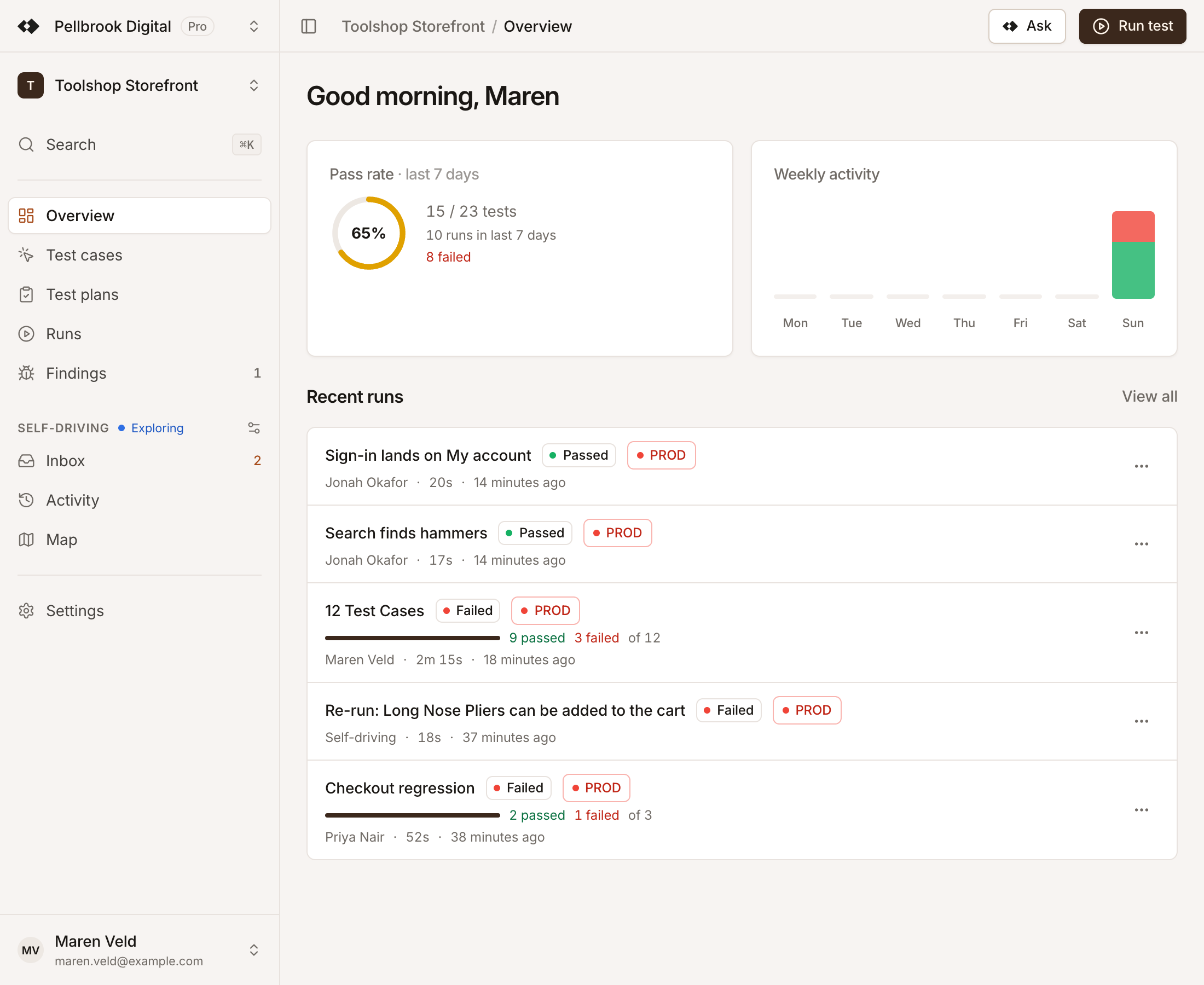
The Testmode app has a sidebar on the left, a header across the top, and the page you’re working on in between. The project switcher at the top of the sidebar chooses which project every page shows, and the organization menu at the bottom holds settings, billing, your profile and sign-out.

What’s in the sidebar?
Section titled “What’s in the sidebar?”| Item | What you do there |
|---|---|
| Overview | See the selected project’s pass rate, recent activity and latest runs. |
| Assistant | Chat to create test cases, plans and variables. |
| Explore | Let the exploratory agent visit your app and propose tests. |
| Test Cases | Write, organize and run test cases. |
| Test Plans | Group test cases, and schedule plans. |
| Runs | Browse every run and open its results. |
| Settings | Project settings, on the General, Environments, Credentials and Variables tabs. |
The current item stays highlighted on its detail pages. For example, a run’s page keeps Runs highlighted. Every role sees every sidebar item.
To hide or show the sidebar, click the panel icon at the left of the header, or press CmdB on a Mac or CtrlB on Windows and Linux.
How do I switch projects?
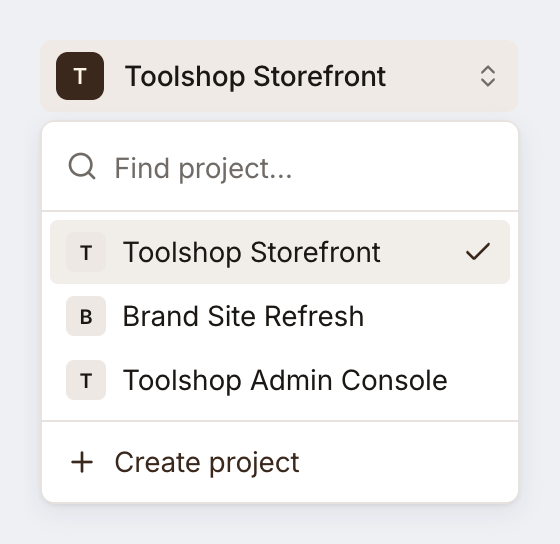
Section titled “How do I switch projects?”Every page shows one project at a time, such as Toolshop Storefront.
-
Click the project box at the top of the sidebar.
-
Type in Find project… to filter the list, or click a project. The current project has a check mark.
The list holds every project in your organization, newest first. With the Editor role or above, you also see Create Project at the bottom of the list. Testmode remembers the last project you picked in this browser.
If you switch while viewing a single run, test plan or exploration, Testmode takes you back to the Runs, Test Plans or Explore list. Search and filters on Test Cases, Test Plans and Runs start fresh in the new project.

What’s in the organization menu?
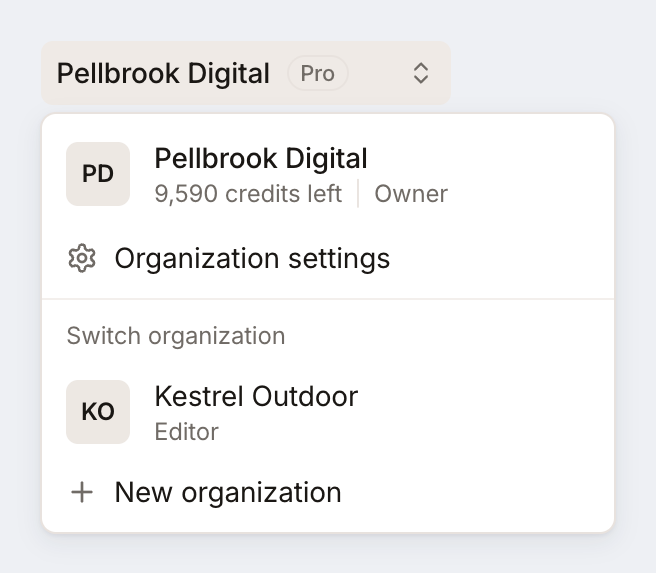
Section titled “What’s in the organization menu?”The button at the bottom of the sidebar shows your organization’s name and its credit balance. Click it to open the menu:
- Your organizations. The menu lists them when you belong to more than one. Click one to switch. If you switch while on Organization Settings, Testmode opens Overview.
- Organization Settings and Billing & credits, for Owners and Admins.
- Profile, for your display name and email notifications.
- Dark mode, to switch the theme.
- Sign out.

What’s in the header?
Section titled “What’s in the header?”The header shows where you are as a breadcrumb, such as Toolshop Storefront / Overview. On the right are actions for the current page, then the Run test button.
Run test opens the Run tests dialog, where you choose an environment and what to run. On a test plan’s page, the dialog opens with that plan selected when the plan is enabled and has test cases. The button appears when a project is selected and you have the Editor role or above.
What does Overview show?
Section titled “What does Overview show?”Overview is a dashboard for the selected project:
- Pass rate · last 7 days shows the share of tests that passed in runs started over the last 7 days.
- Weekly activity charts tests per day for today and the six days before it.
- Recent runs lists the 5 most recent runs. Click a row to open it, or use its menu to View details, Copy link or Re-run.
Good to know:
- Tests in progress count as not passed. Overview counts every test that hasn’t passed as failed, so runs in progress lower the pass rate until they finish.
- Overview doesn’t update live. Reload the page to see new results.
- Explorations aren’t counted.
- Re-run starts a new run on the same environment, and it uses credits. It needs the Editor role or above. If the run can’t start, you see “Failed to re-run” with the reason.
How do I use the command palette and keyboard shortcuts?
Section titled “How do I use the command palette and keyboard shortcuts?”Press CmdK on a Mac or CtrlK on Windows and Linux to open the command palette. Type to filter, then press Enter.
The palette runs actions and opens pages, such as Test Cases, Runs, Profile and Organization Settings. Its Run test and Start exploration actions appear only when a project is selected and you have the Editor role or above. The palette finds commands and pages only. It doesn’t search your test cases, plans or runs.
Press ? to open the Keyboard shortcuts dialog, and Esc to close it. Navigation shortcuts use two keys: press G, then T within a second to open Test Cases. These single-key shortcuts don’t fire while you’re typing in a field or while a dialog or menu is open.
How do I turn on dark mode?
Section titled “How do I turn on dark mode?”Open the organization menu at the bottom of the sidebar and choose Dark mode, with the mouse or the keyboard. Choose it again to switch back. Light is the default. Your choice is saved in this browser only, so other browsers and devices keep their own setting.
What changes on a small screen?
Section titled “What changes on a small screen?”On narrow screens the sidebar is hidden. Tap the panel icon in the header to open it as a slide-over panel.
Why does a page look empty?
Section titled “Why does a page look empty?”| You see | What it means | What to do |
|---|---|---|
| “No project selected” | Your organization has no project yet, or none is selected. | Pick or create a project in the project switcher. |
| “No runs yet” | The project has no runs. | Start one with Run test (Editor role or above). |
| “Could not load your organizations.” | Testmode couldn’t load your organizations, for example after a network error. | Click Retry. |
| “This page doesn’t exist” | The link is wrong or out of date. | Click Back to dashboard. |
| “Something went wrong” | The app hit an unexpected error. | Click Refresh Page. |
If you open Organization Settings without the Owner or Admin role, Testmode takes you back to Overview.