Run tests
Start a run of one test case, a test plan or every enabled test case, on the environment you choose, from the app, the keyboard, a schedule, CI or an AI agent. Re-run or cancel a run, and see what was left out.
A run executes test cases on one environment. Each test case becomes one test in the run, and the tests execute at the same time, each in its own browser.
Start a run
Section titled “Start a run”-
Click Run test in the top right corner of any page, or press Cmd+R (Ctrl+R on Windows and Linux).
-
Under Environment, choose where to run. The project’s default environment is preselected; a PROD badge marks production.
-
Under What to run, choose All test cases, Test plan or Single test, and pick the plan or test case.
-
Click Run.
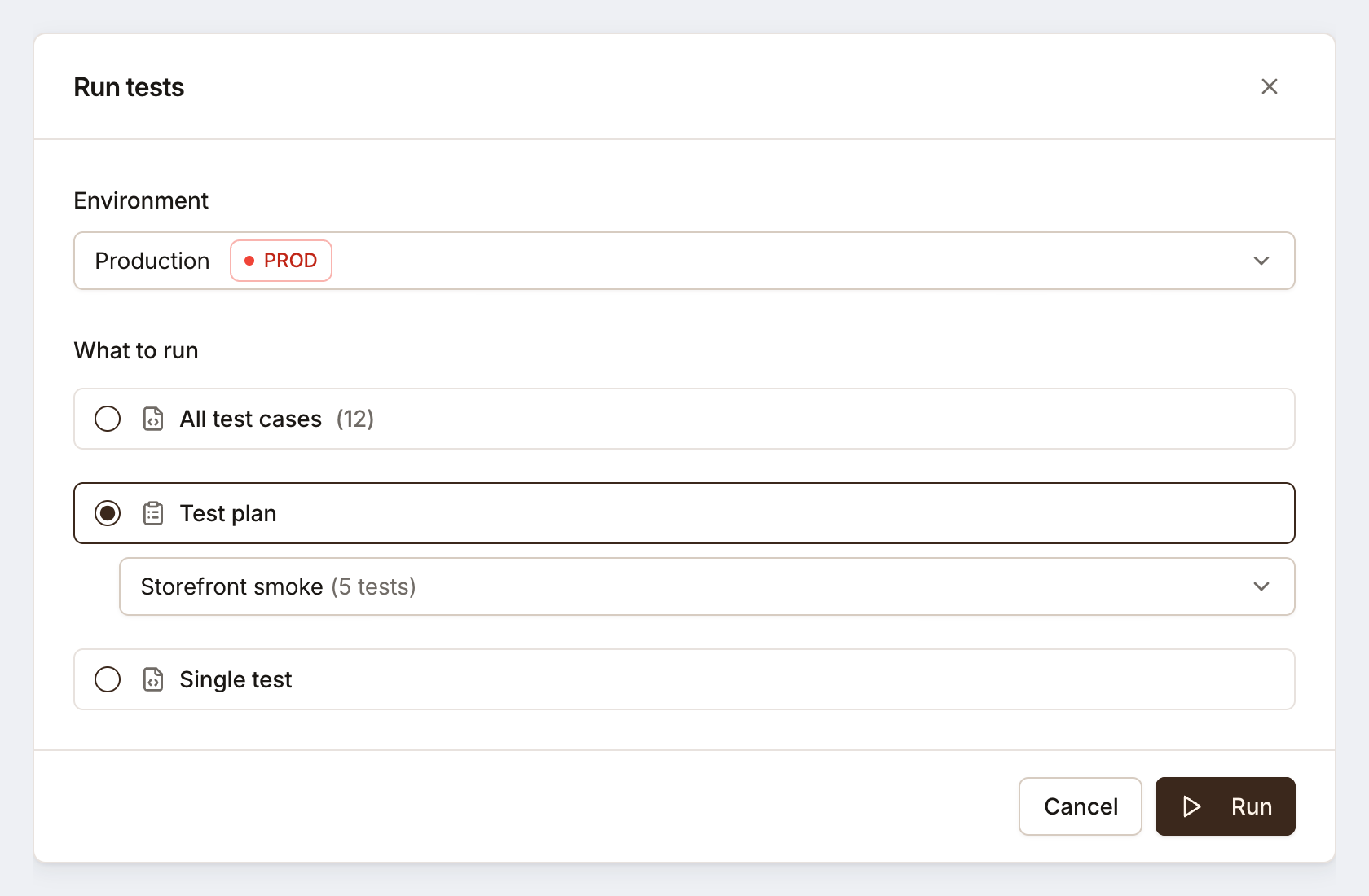
Testmode opens the new run’s page, where you can follow it live. Starting runs needs the Editor role or above.
Shortcuts into the dialog:
- On a plan’s page, Run test opens with that plan chosen.
- On Test cases, Run in a test case’s ⋯ menu opens with that test case chosen.
- In Runs, Re-run in a run’s ⋯ menu starts the same run again.
What a run includes
Section titled “What a run includes”| You choose | The run includes |
|---|---|
| All test cases | Every enabled test case in the project |
| Test plan | Every enabled test case in the plan |
| Single test | That one test case, which must be enabled |
Left out, and not charged:
- Switched-off test cases. Switch one on to include it.
- Test cases with no steps and no Expected Outcome. There is nothing to check; the dialog says how many will be skipped.
- Test cases marked Changes data, on a production environment that doesn’t allow them. The run page says how many were left out. See Pause testing and protect data.
A run uses one credit for each action its tests take. The dialog says nothing about credits unless few are left, or the run needs more than you have: then it says how many it needs and how many are left, and disables Run. See How credits are counted.
Other ways to start a run
Section titled “Other ways to start a run”- Schedules run a plan automatically. See Schedule test plans.
- Re-run: in Runs, the ⋯ menu on a run starts a new run with the same test cases on the same environment. On a test’s page, Re-run runs that one test again.
- CI pipelines start runs with an API key. See Run tests from CI.
- AI agents start runs over MCP. See Connect an AI agent over MCP.
- Self-driving runs tests too: its re-runs and drafts when it investigates a failure, and a trial of each test it writes or fixes. They show in Runs as started by Self-driving.
All of them use credits the same way, and their runs appear in Runs with who or what started them.
Cancel a run
Section titled “Cancel a run”While a run is queued or running, Cancel run on its page stops it, after you confirm:
- Tests that haven’t started don’t run and use no credits.
- Tests that are running are stopped within a minute, and use the credits of the actions they already ran.
- Tests that have finished keep their results.
The run ends Canceled. Cancelling needs the Editor role or above. To keep one test out of a run that is still waiting, switch its test case off instead: its queued tests are skipped and not charged.
Watch it run
Section titled “Watch it run”The run’s page fills in live: each test’s status, its steps as they complete, and, for editors, the live browser. See Read run results.