Start an exploration
An exploration sends Testmode’s agent through one environment: it reads your app page by page, measures what a glance misses, tries things the way a tester does, and suggests new and updated test cases. Settings, limits, stopping and what it never does.
An exploration sends Testmode’s exploratory agent through one of your environments. It opens your app in a real browser, visits it page by page, tries things on the pages it read, compares what it found with your test suite, and suggests what to add or change. What it learns goes onto the map.
With Self-driving on, explorations start on their own every day. Start one yourself to explore one area now, for example a new checkout flow on staging.
Start one
Section titled “Start one”-
Open Activity in the sidebar’s Self-driving section (or press G then A) and click Explore something specific. Explore again on the map and Start exploration in the command palette open the same panel.
-
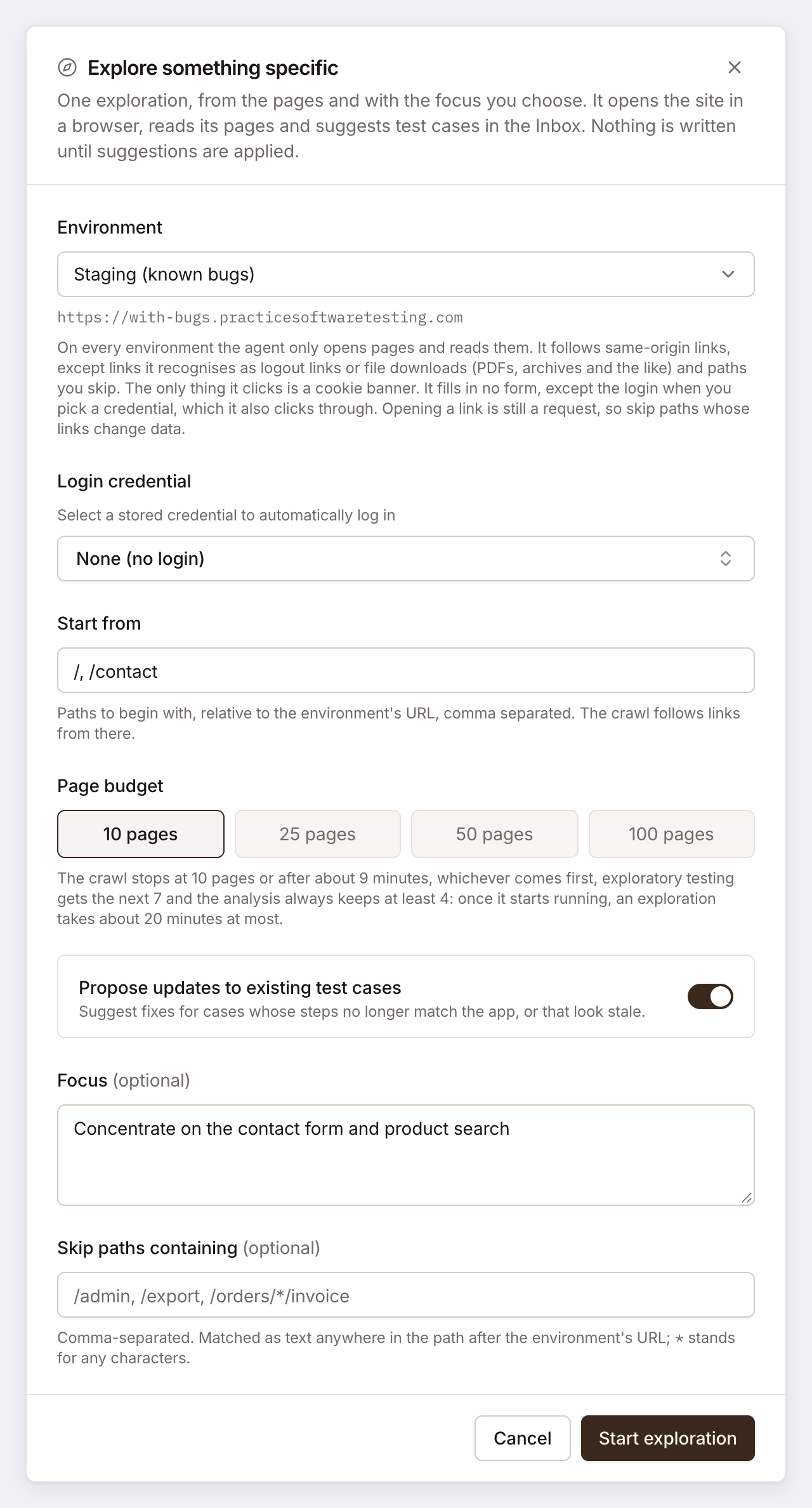
Choose the Environment to explore.
-
If pages are behind a login, choose a Login credential. The agent signs in first, the same way tests do.
-
Under Start from, list the paths to begin with, relative to the environment’s URL and separated by commas. The default is
/. -
Choose a Page budget: 10, 25, 50 or 100 pages.
-
Leave Propose updates to existing test cases on to get fixes for test cases whose steps no longer match the app.
-
Optionally, give a Focus, such as
Concentrate on the checkout flow, and Skip paths containing for areas to leave alone. -
Click Start exploration.
Starting explorations needs the Editor role or above and a paid plan: explorations are part of Self-driving. An exploration costs 10 credits for each page it reads, charged when it ends. The assistant can start one for you too: “explore the staging site and tell me what we’re missing”.
What the agent does
Section titled “What the agent does”An exploration takes about 20 minutes at most, in four parts.
The crawl reads pages
Section titled “The crawl reads pages”On every environment, production included, the crawl only opens pages and reads them:
- It follows links on the same site, including hash routes such as
#/orders, and visits screens the map doesn’t hold yet before the ones it knows. - It doesn’t fill in forms or click buttons. The exceptions are the login, when you chose a credential, and dismissing a cookie banner once per crawl.
- It skips links it recognizes as logging out, links to files such as PDFs, archives, images and spreadsheets, links to other sites, and the paths you skip.
- It samples rather than crawls everything:
/orders/123and/orders/456count as one screen.
Besides reading each page, it measures what reading can’t show and reports it as a fact, starting Measured:: an error status, a slow page, an image or link that doesn’t load, an error the page’s scripts threw, undefined or & shown as text, a button cut off by its box, a field without a name, a list showing the same record twice, a card number printed in full, figures that don’t add up.
Opening a link is still a request, and some apps change data on one, such as an unsubscribe link or ?action=archive. Add those under Skip paths containing.
Journey walks reach screens no link opens
Section titled “Journey walks reach screens no link opens”A few short walks take steps from the pages it read to reach screens such as the checkout after a product is in the cart, or the confirmation step of a form, and read them like any other page.
Exploratory tests try things
Section titled “Exploratory tests try things”Then the agent tries things on the pages it read, the way a tester hunting bugs does: sorts a list and checks the order, searches in lower case, enters an invalid value and checks it is refused, changes a quantity and checks the totals, reloads and checks a choice was kept, and, when the project has a second login on the environment, checks one account can’t open another’s records. Each try is a short test that is never saved; a check that fails is tried once more before it counts.
Unlike the crawl, these tests click, type and submit. On a production environment that does not allow tests that change data, they stop short of anything that would keep data, such as placing an order. They never sign out or change the account.
The analysis suggests
Section titled “The analysis suggests”Last, the analysis compares everything with your suite and suggests new test cases, changes to existing ones, plans and variables, plus recommendations about defects the tests confirmed, with steps to reproduce. With time to spare, it also writes test cases for the rules the pages promise that nothing checks yet: figures, limits, valid and invalid input.
Skip paths
Section titled “Skip paths”Patterns are matched as plain text anywhere in a link’s path, relative to the environment’s URL, ignoring case:
| Pattern | Skips |
|---|---|
/admin |
/admin, /admin/users, /reports/admin |
^/admin |
/admin and /admin/users, not /reports/admin |
/orders/*/invoice |
/orders/123/invoice |
/export$ |
/export, not /export/csv |
Separate patterns with commas; at most 50, each up to 200 characters. Regular expressions are not supported.
While it runs
Section titled “While it runs”The exploration’s page shows its progress, the live browser (for editors), and Pages visited filling in.
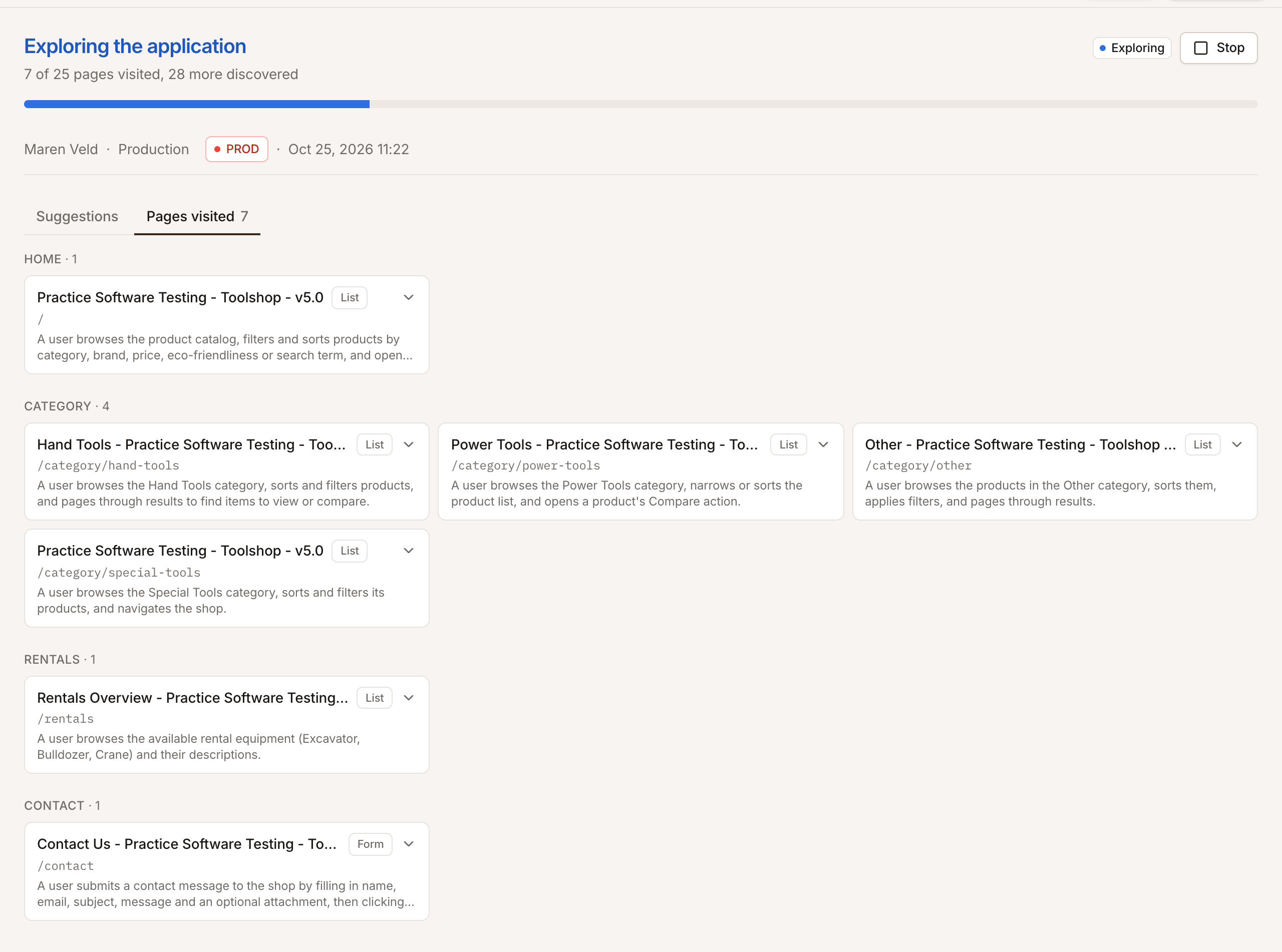
- The crawl stops at the page budget or after about 9 minutes, whichever comes first.
- The exploratory tests run for up to about 7 minutes, longer when the crawl ends early.
- The analysis always gets at least 4 minutes.
- Time waiting in the queue doesn’t count. One exploration runs per project at a time.
Stop ends it. While it is exploring, the crawl ends after the current page, and the exploration is canceled with no suggestions; the pages it visited stay listed. While it is analysing, the suggestions are discarded when the analysis returns.
Pages visited
Section titled “Pages visited”Once the crawl is over, the Pages visited tab shows the session replay of the crawl and every page the agent visited, grouped by type: its title, the start path that opens it, its purpose, and what the agent saw on it: forms, actions, states and errors. Show in replay jumps to the moment a page was read.
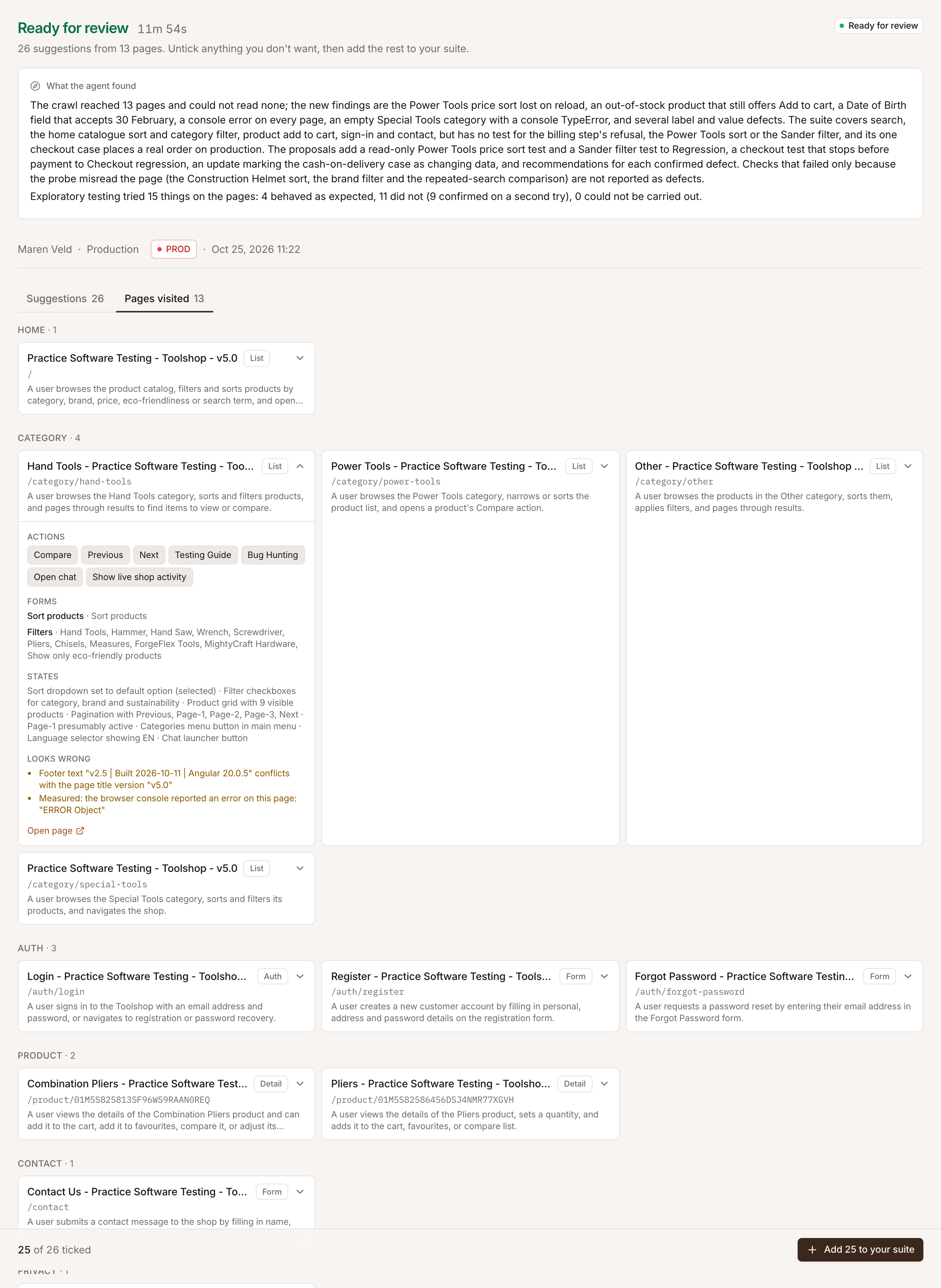
- A page the agent opened but couldn’t read is marked Couldn’t be read, with the reason, and left out of the analysis.
- A page on your site but outside the environment’s URL is listed under Outside the environment: no start path opens it, so no test case is suggested there.
- Secrets in page URLs, such as tokens in query strings, are not stored.
When it finishes
Section titled “When it finishes”| Result | Meaning |
|---|---|
| Ready for review | There are suggestions to review. It also shows in the Inbox. See Review and add suggestions. |
| Finished | The agent found nothing to suggest from the pages it could read. That says nothing about pages it didn’t reach within its budget and time. |
| Exploration failed | It couldn’t finish. When it visited pages but could read none, the message says why and, if pages didn’t load, asks you to check the environment URL and start paths. |
With Self-driving on, a finished exploration starts a review, which may add the suggestions that serve your goal to the suite itself. See How Self-driving works.
Find past explorations
Section titled “Find past explorations”Self-driving’s Activity lists every exploration among its other work; filter it to Explorations. Each row shows the environment, the status, who started it (a person, or Self-driving, learning the app and the like), the pages read and the suggestions. Its ⋯ menu has View (or Review proposals), Stop exploration while it runs, and Delete, which removes the exploration with its pages and suggestions; test cases already added from it stay.