Environments: where your tests run
An environment is a site your tests run against, such as staging or production. Add one, mark production and decide whether tests that change data run there, choose the default, and understand what deleting one removes.
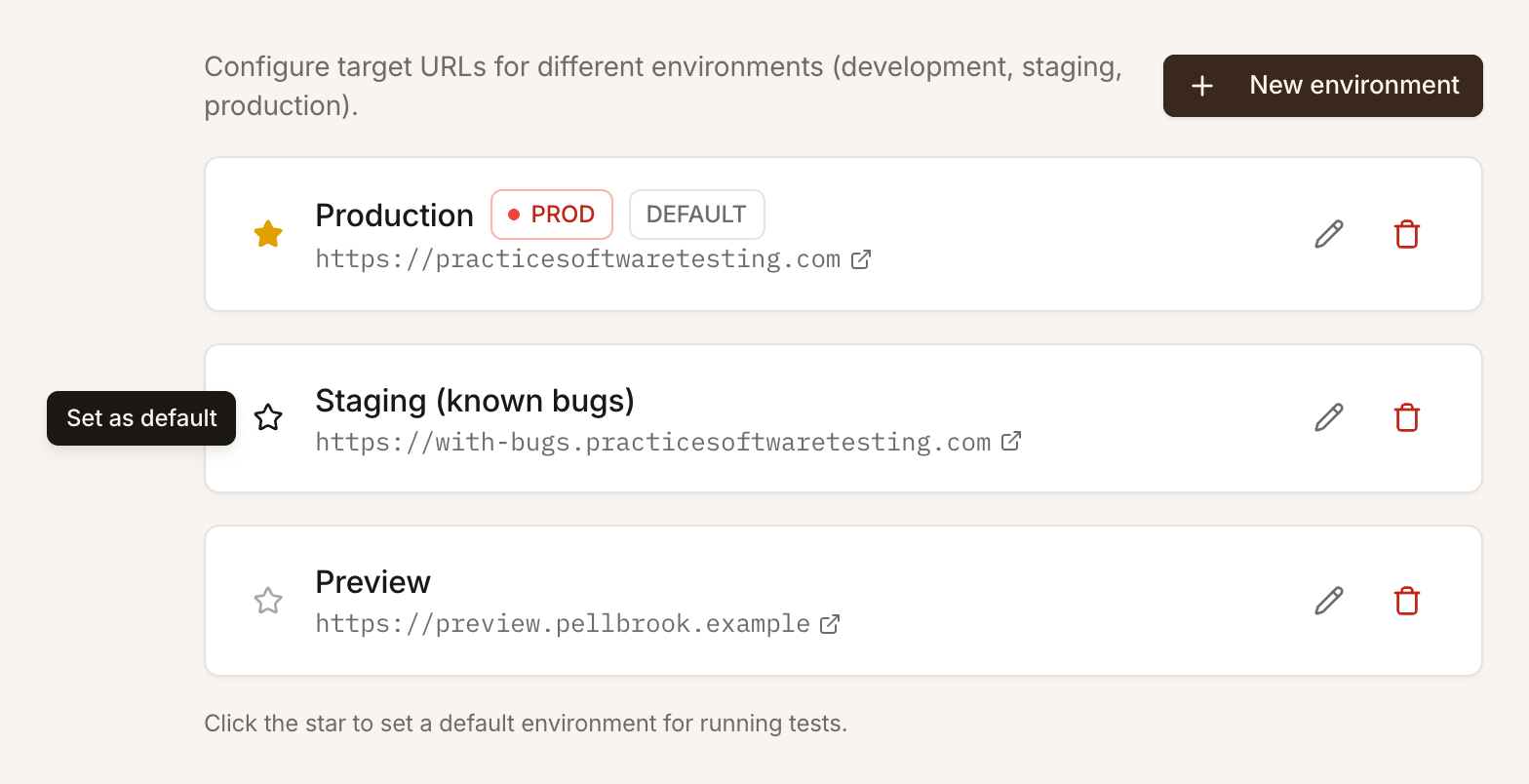
An environment is a site your tests run against: production, staging, a preview build, one customer’s domain. Every run and every exploration uses exactly one, and Self-driving explores one of your choice. Because test cases don’t contain URLs, the same test case runs against any of the project’s environments.
Add an environment
Section titled “Add an environment”-
Open Settings > Environments and click New environment.
-
Enter a Name, such as
Staging, and the Base URL, such ashttps://staging.example.com. The URL must start withhttp://orhttps://, and may include a path, such ashttps://example.com/app. -
Switch on Production environment if this is your live site. Then decide whether Run tests that change data here too (see below).
-
Click Save.
Managing environments needs the Editor role or above. The first environment of a project usually comes from the Application URL you entered when you created the project. On the Free plan, a project has one environment.
The base URL and start paths
Section titled “The base URL and start paths”A test opens the environment’s Base URL, plus the test case’s Start path when it has one. Start paths are relative to the base URL:
| Base URL | Start path | The test opens |
|---|---|---|
https:// |
(empty) | https:// |
https:// |
/contact |
https:// |
https:// |
/settings |
https:// |
https:// |
/#/orders |
https:// |
Keep environments of one project alike: the same paths and the same labels on screen, so one set of test cases fits them all. A URL or path can be up to 2048 characters.
Production environments
Section titled “Production environments”Production environment marks an environment as your live site. It shows a PROD badge wherever the environment appears, in the Run tests dialog, the runs list and the run page, so nobody runs against production by mistake.
On a production environment, test cases marked Changes data (they submit, buy, delete or send something real) are left out of every run, and the run page says how many were left out. To run them there too, switch on Run tests that change data here too. Every other test runs as written. See Pause testing and protect data.
An exploration’s crawl only reads pages, on every environment; its exploratory tests stop short of keeping data on a production environment that does not allow tests that change data. See Start an exploration.
The default environment
Section titled “The default environment”Click the star next to an environment to make it the project’s default. The default is preselected in the Run tests dialog, and it is the environment API and CI runs use when they don’t name one.
Edit or delete an environment
Section titled “Edit or delete an environment”Click the pencil to change an environment’s name, URL or production settings. Runs already finished keep their results; the next run uses the new URL.
Click the trash icon to delete an environment. The confirmation says what goes with it:
- Its runs, with their results, its schedules and its explorations.
- Credentials scoped to it. Test cases that signed in with them run without a login.
- The default: if it was the default environment, API and CI jobs that don’t name an environment fail until you choose a new default.
Test cases, test plans, variables and project-wide credentials are kept. If the site only moved, edit its URL instead. When Self-driving explores the environment, it stops exploring until you choose another one in its settings.
An environment can’t be deleted while tests are queued or running on it, or while an exploration of it is running; stop the exploration in Self-driving’s Activity first. A long run history can take a few moments to remove; the dialog shows its progress.