Troubleshoot failed tests
Work out why a Testmode test failed: read the failure reason, look at the screenshot and the session replay, let Self-driving investigate, and fix the usual causes, from changed labels and vague waits to blocked browsers and failures on Testmode’s side.
A failed test is either your app doing something it shouldn’t, which is what tests are for, or a test that doesn’t describe the app correctly. This page helps you tell which, and fix the second kind.
With Self-driving on, a failed scheduled, CI or plan run is investigated for you: the Inbox says whether each failure is a bug, an intended change, a test problem, flaky or an environment problem, and offers new steps it has already tried. See How Self-driving investigates failed runs. The rest of this page is how to do the same by hand.
Read the failure in three steps
Section titled “Read the failure in three steps”-
Read the failure reason at the top of the test. It says which step and operation failed, or that the Expected Outcome didn’t hold and what Testmode saw instead.
-
Open the step in Test steps (Jump to failure takes you there), read what the operation looked for, and look at the screenshot of the page at that moment.
-
Play the session replay around that moment (Show in replay on the operation) to see how the page got there.
Then decide: is the app wrong, or is the test? Record your answer with Triage under the failure reason, so the finding says what it was.
The app is wrong: a real failure
Section titled “The app is wrong: a real failure”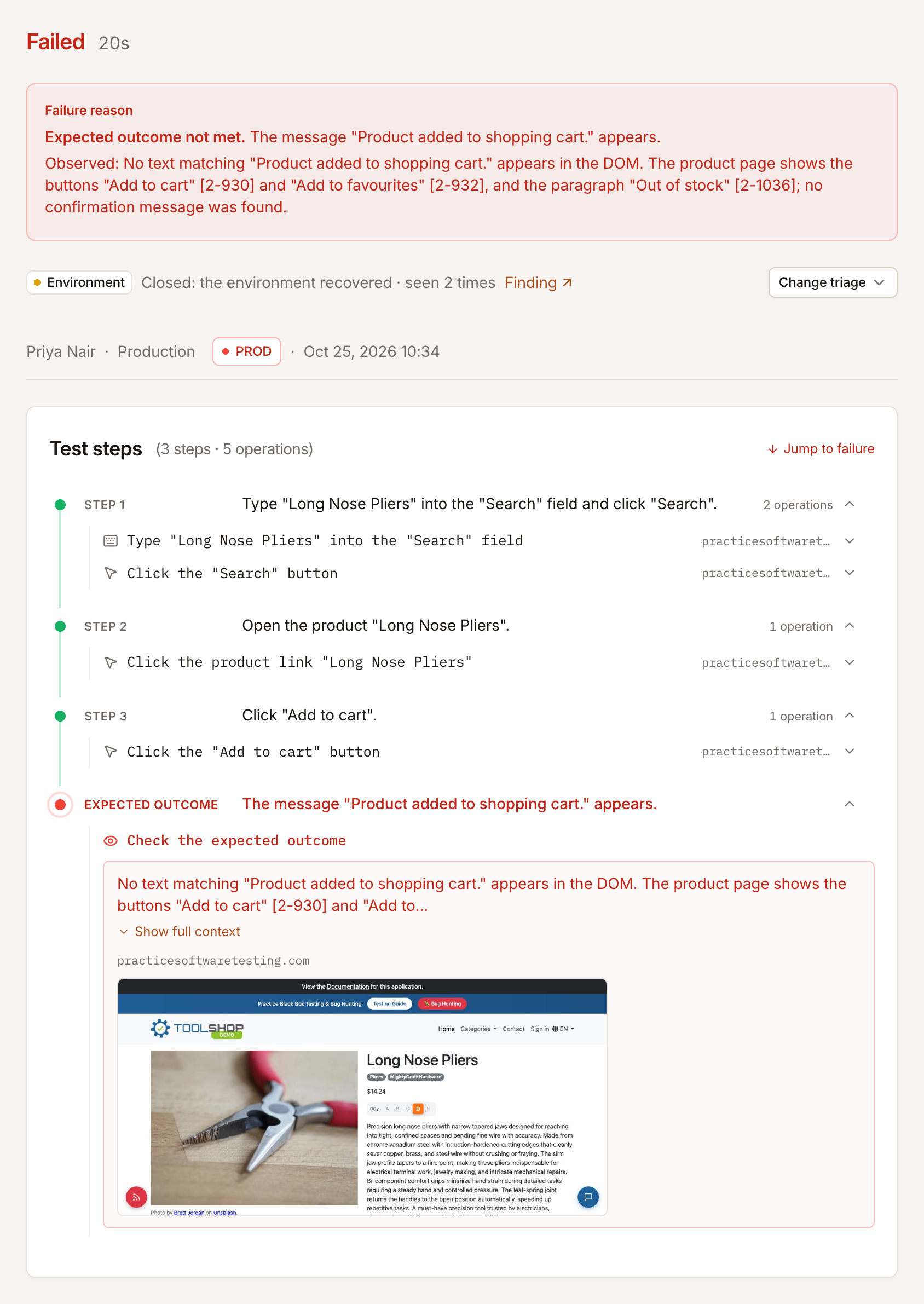
When the screenshot or the replay shows the app misbehaving, such as an error page, a missing message or a wrong value, triage it as a bug and report it. Leave the test case as it is; it passes again once the app is fixed, and that passing run verifies the fix. If the failure is known and the fix will take a while, switch the test case off rather than deleting it.
The test is wrong: common causes and fixes
Section titled “The test is wrong: common causes and fixes”A wait names nothing visible
Section titled “A wait names nothing visible”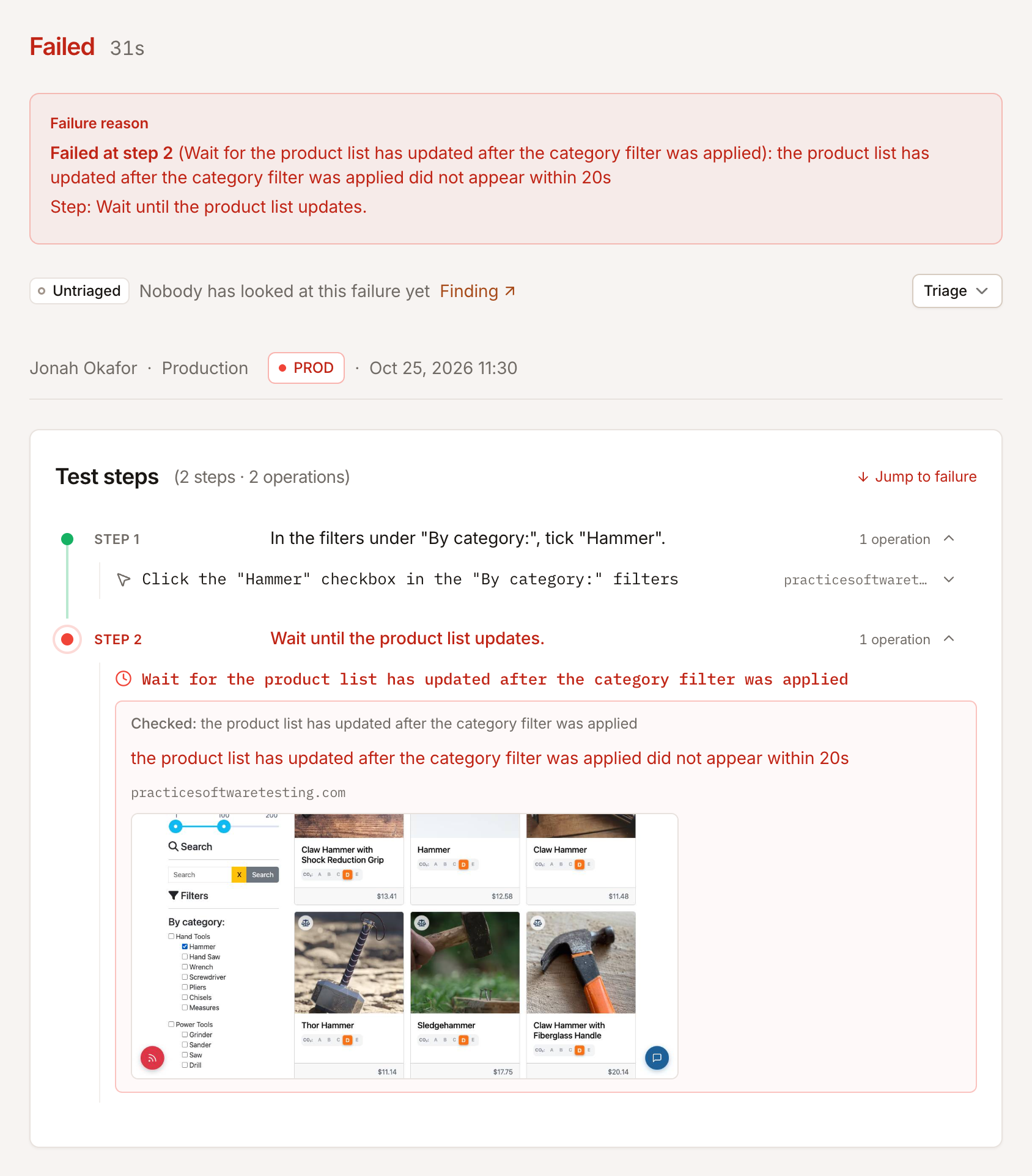
“Wait until the product list updates” can’t be seen on a page: Testmode waits 20 seconds for it and fails, even though the list did update. Name something that appears: Wait until "Claw Hammer" is listed.
A label changed, or doesn’t match
Section titled “A label changed, or doesn’t match”“Failed at step N” with no element found usually means the step quotes a button, field or option the page doesn’t show, or no longer shows. Compare the step’s quoted words with the screenshot and update the step. The reworded step is worked out again on the next run.
The step is vague
Section titled “The step is vague”“Submit the form” or “open the first product” may act on the wrong element, so a later step fails. Make the step name the element: Click "Send"., Open the product "Combination Pliers".
The Expected Outcome is stricter than you meant
Section titled “The Expected Outcome is stricter than you meant”“Expected outcome not met” with an “Observed” that is fine for you means the outcome asks for more than you need. Describe only what must be true, in words the page shows.
The test relies on another test
Section titled “The test relies on another test”Tests run in separate browsers, at the same time, in no fixed order. A test that expects a cart item another test added fails. Each test sets up what it needs.
The page wasn’t ready
Section titled “The page wasn’t ready”A step that acts before content has loaded fails to find the element. Add a wait for what appears first: Wait until the heading "Payment" appears.
The test ran out of time
Section titled “The test ran out of time”“Timed out: the test did not finish within N minutes” means the test reached its maximum duration. Split long journeys into several test cases, or raise Maximum duration (minutes) for that test case.
The site blocked the browser
Section titled “The site blocked the browser”If the screenshot or the replay shows a challenge page, “Access denied” or a CAPTCHA instead of your app, the site refuses automated traffic. Allow Testmode’s browsers on that environment, or turn the protection off there. See What Testmode can and cannot test.
Login failed
Section titled “Login failed”“Login failed: …” before any step means automatic login didn’t work, and the test isn’t charged. See Troubleshoot login.
Failures on Testmode’s side
Section titled “Failures on Testmode’s side”When our AI model or browser fails, Testmode retries the test, and the card says “Retrying: …”. If it keeps failing, the test ends with a message about Testmode’s model or browser, and it isn’t charged. These failures say nothing about your app, and file no finding: run the test again later.
A test that fails now and then
Section titled “A test that fails now and then”A test that fails, then passes when run again without any change, is flaky. Self-driving sets flaky failures aside and brings them to the Inbox from their third time. Look for a wait that names something that appears late, a step that depends on data that changes, or a page that shows a different layout now and then, and make the step more specific.
Still stuck?
Section titled “Still stuck?”- Check the Console and Network logs at the bottom of the test for errors around the failing step. See Console and network logs.
- Ask the assistant to look at the test case and the page, and suggest better wording. On an Inbox item, Ask about this gives it the failure too.
- Run an exploration to see how the agent reads the page.