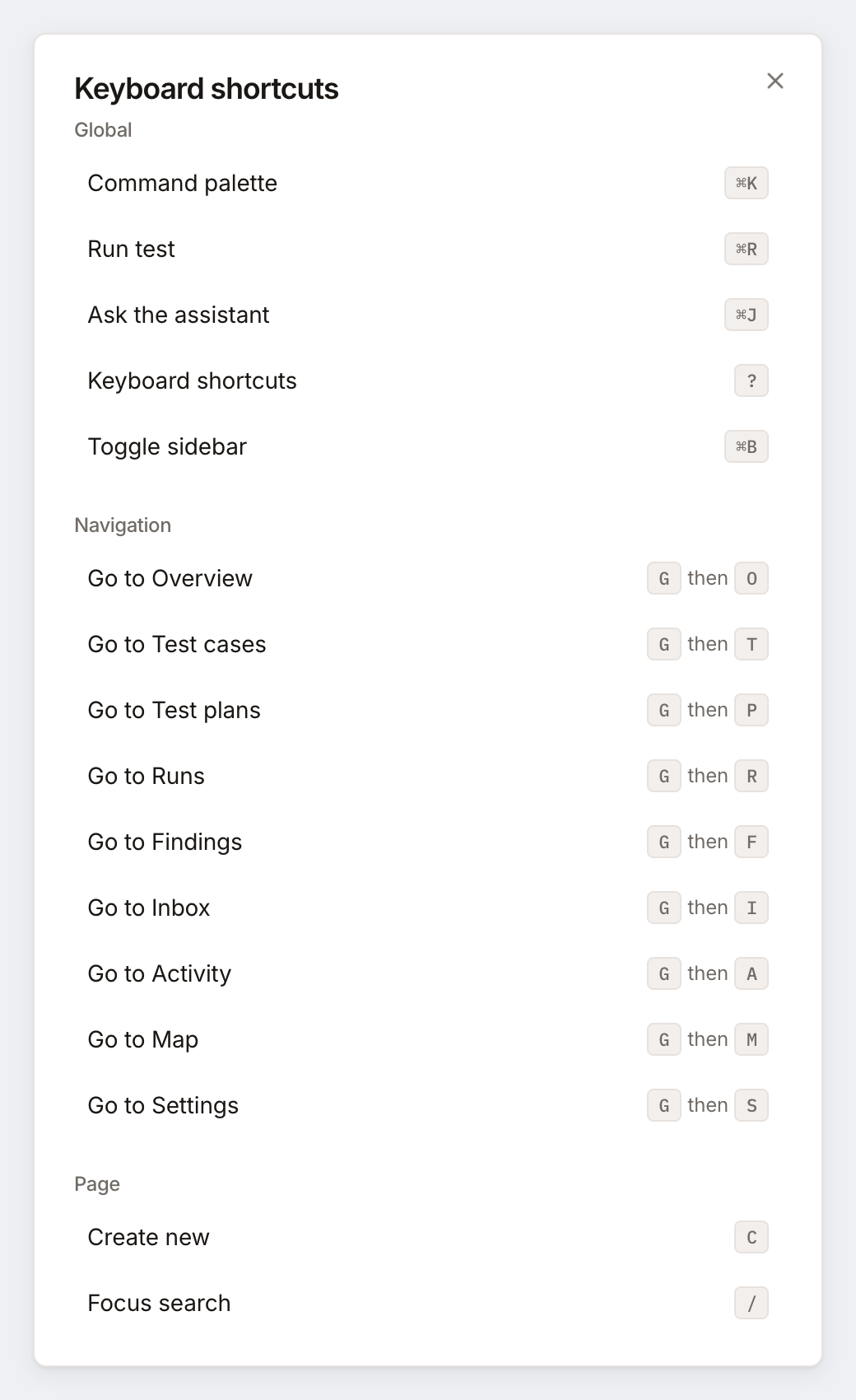
Testmode has keyboard shortcuts for the command palette, starting a run, the sidebar, moving between pages, and creating or searching on list pages. Press ? on any page to see the full list.
On Mac, shortcuts use Cmd. On Windows and Linux, they use Ctrl.

Open the command palette
Section titled “Open the command palette”Press CmdK on Mac or CtrlK on Windows and Linux. Type to filter the list, then use the arrow keys and Enter, or click an item. Press the shortcut again, or Esc, to close it.
| Group | Item | Shortcut | What it does |
|---|---|---|---|
| Actions | Run test | CmdR | Opens the Run tests dialog. Shown only to the Editor role and above, while a project is selected. |
| Start exploration | None | Opens New exploration on the Explore page. Shown only to the Editor role and above, while a project is selected. | |
| Keyboard shortcuts | ? | Opens the Keyboard shortcuts dialog. | |
| Navigation | Overview, Assistant, Explore, Test Cases, Test Plans, Runs, Settings | G then a key | Goes to that page. |
| Settings | Profile | None | Opens your profile. |
| Organization Settings | None | Opens Organization Settings. Only Owners and Admins can open it; anyone else lands on Overview. |
Good to know:
- The palette finds commands and pages only. Despite its “Type a command or search…” placeholder, it does not search your test cases, test plans or runs. Use the search box on each list page for that.
- The palette opens even while you are typing in a field.
- Viewers don’t see Run test or Start exploration in the palette, because they can’t start runs or explorations.
Global shortcuts
Section titled “Global shortcuts”These work on every page of the app.
| Shortcut | Mac | Windows and Linux | What it does |
|---|---|---|---|
| Command palette | CmdK | CtrlK | Opens or closes the command palette. |
| Run test | CmdR | CtrlR | Opens the Run tests dialog. Works only while a project is selected and you have the Editor role or above. |
| Keyboard shortcuts | ? | ? | Opens the Keyboard shortcuts dialog. Press Esc to close it. |
| Toggle sidebar | CmdB | CtrlB | Shows or hides the sidebar. |
Starting a run needs the Editor role or above. See Run tests.
Go to a page (G then a key)
Section titled “Go to a page (G then a key)”Press G, let go, then press the second key within 1 second. While Testmode waits for the second key, a small “G then …” hint appears at the bottom of the screen.
| Keys | Goes to |
|---|---|
| G then O | Overview |
| G then A | Assistant |
| G then E | Explore |
| G then T | Test Cases |
| G then P | Test Plans |
| G then R | Runs |
| G then S | Settings |
- Press G on its own, without Shift, Cmd or Ctrl.
- Pressing G again restarts the wait. Any other key cancels the sequence.
Page shortcuts
Section titled “Page shortcuts”These work only on the pages listed.
| Key | Shortcut | Where it works |
|---|---|---|
| C | Create new | On Test Cases, opens Create Test Case. On Test Plans, opens Create Test Plan. On Explore, opens New exploration. Works only for the Editor role and above. |
| / | Focus search | Puts the cursor in the search box on Runs, Test Cases, Test Plans and Explore. |
On any other page, C and / do nothing. For Viewers, C does nothing on any page, while / still works.
Keys inside pages and dialogs
Section titled “Keys inside pages and dialogs”A few places in the app have keys of their own.
| Where | Keys | What they do |
|---|---|---|
| Screenshot viewer on a run | Left and Right | Move to the previous or next screenshot. |
| Screenshot viewer on a run | Esc | Closes the viewer. |
| Assistant message box | Enter | Sends the message. |
| Assistant message box | ShiftEnter | Starts a new line. |
| Tags in the test case dialog | Enter | Adds the tag you typed. |
| Recent runs on Overview | Enter | Opens the run that has focus. |
When shortcuts do not fire
Section titled “When shortcuts do not fire”- You are typing in a field. G sequences, ?, C and / are ignored while the cursor is in a text field. Click outside the field first.
- A dialog or menu is open. The same keys are ignored while any dialog or menu is open, including the test case dialog, the command palette and the Keyboard shortcuts dialog. Press Esc to close it first.
- You are on another page. C and / only work on the pages listed under Page shortcuts.
- No project is selected. CmdR and CtrlR leave the browser to reload the page as usual.
- You are a Viewer. CmdR and CtrlR reload the page, and C does nothing. See Roles and permissions.
The Command palette, Run test and Toggle sidebar shortcuts work even while you type or while a dialog is open.