Read run results and evidence
Read a Testmode run: the run summary, each test’s verdict and failure reason, the screenshot of the failure, the session replay, the live browser, the step timeline with every operation, the finding a failure filed, and the browser’s logs.
Every run has a page with its verdict and the evidence for it: a recording of each test’s browser, the operations each step ran, a screenshot of the moment a test failed, and the browser’s logs. Nothing is summarized away: what you see is what the browser did.
The Runs page
Section titled “The Runs page”Runs lists the project’s runs, newest first, with what was run, who or what started it, its status, when it ran and how long it took, and the environment. The summary above the list counts passed, failed and running runs. Search by name, or filter by status and environment.
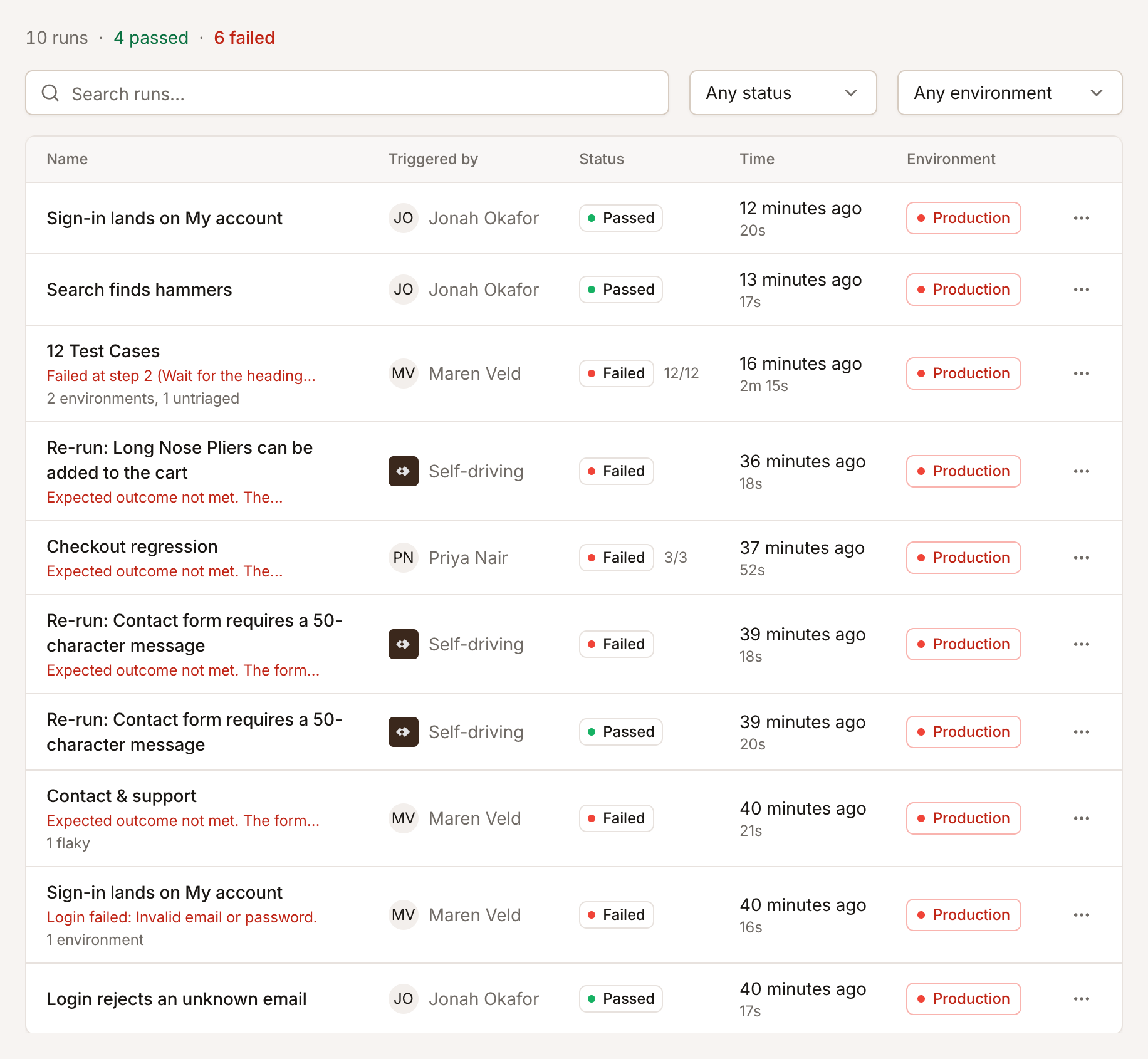
Under a failed run, a line says what its failures turned out to be, such as a bug or a flaky test, or that Self-driving is still investigating it. A skipped run says why it didn’t start. Runs that Self-driving started, its re-runs, drafts and trials, show Self-driving as who started them.
The ⋯ menu on a run has View details, Copy link and Re-run.
The run page
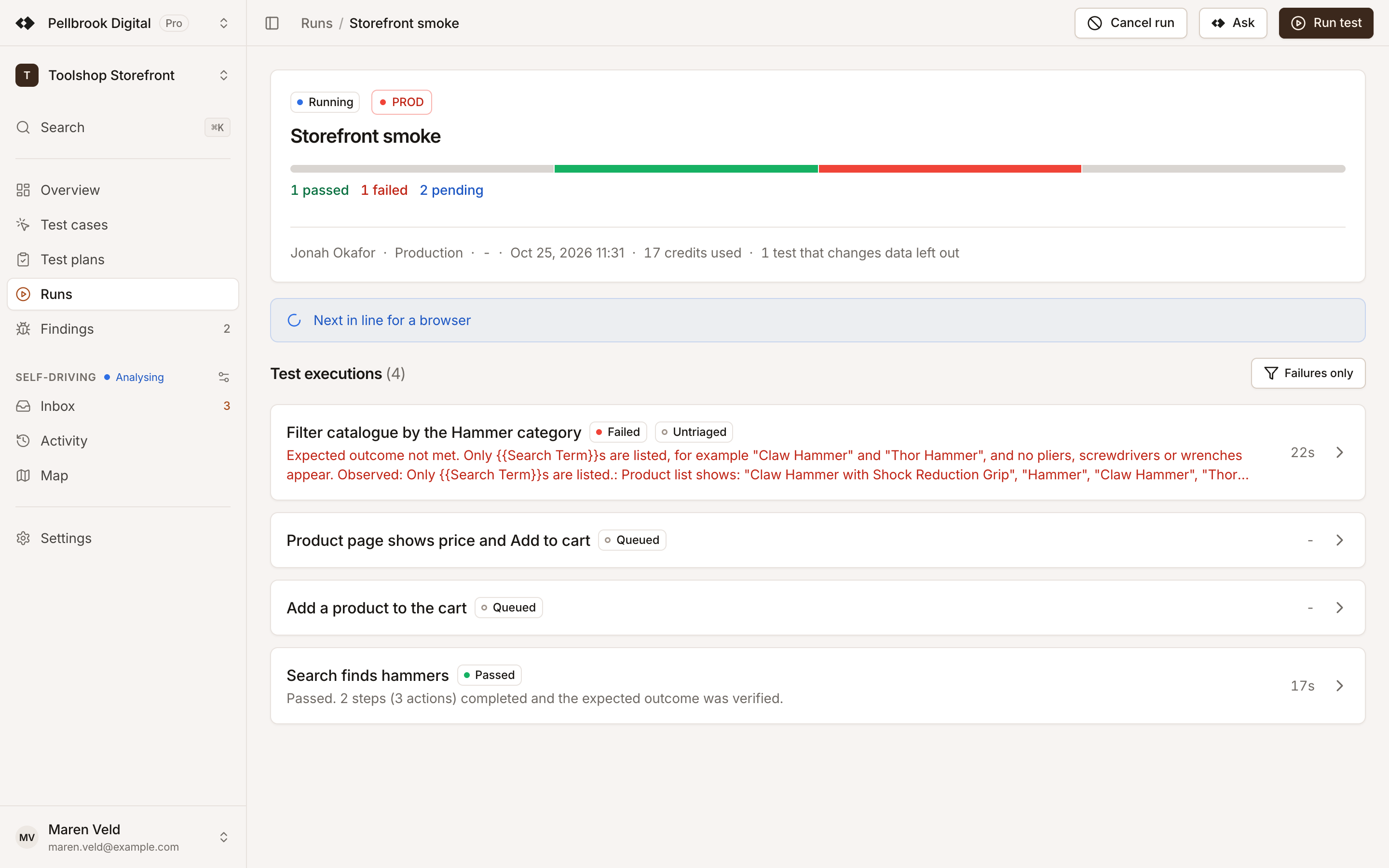
Section titled “The run page”A run’s page starts with its summary: the status, a bar with one segment per test, the counts of passed and failed tests, who or what triggered it, the environment, duration, start time and the credits it used. When tests that change data were left out on production, it says how many. Below it, Test executions lists the run’s tests with their status, duration and, for a failed test, its failure reason.
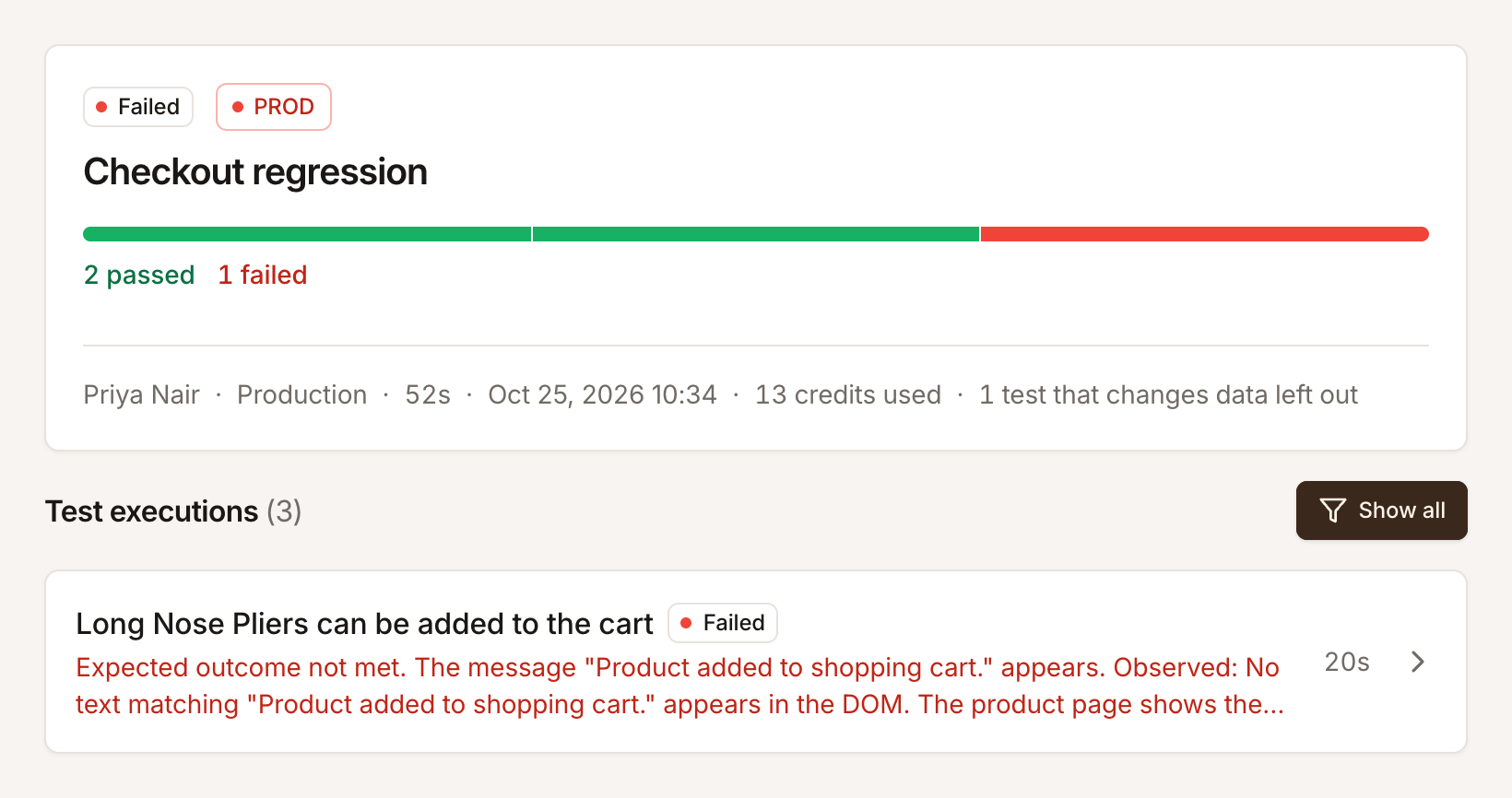
Click a test to open it. A run with a single test opens that test straight away. While a run is queued or running, editors can Cancel run. See Run tests.
A test’s page
Section titled “A test’s page”Verdict and failure reason
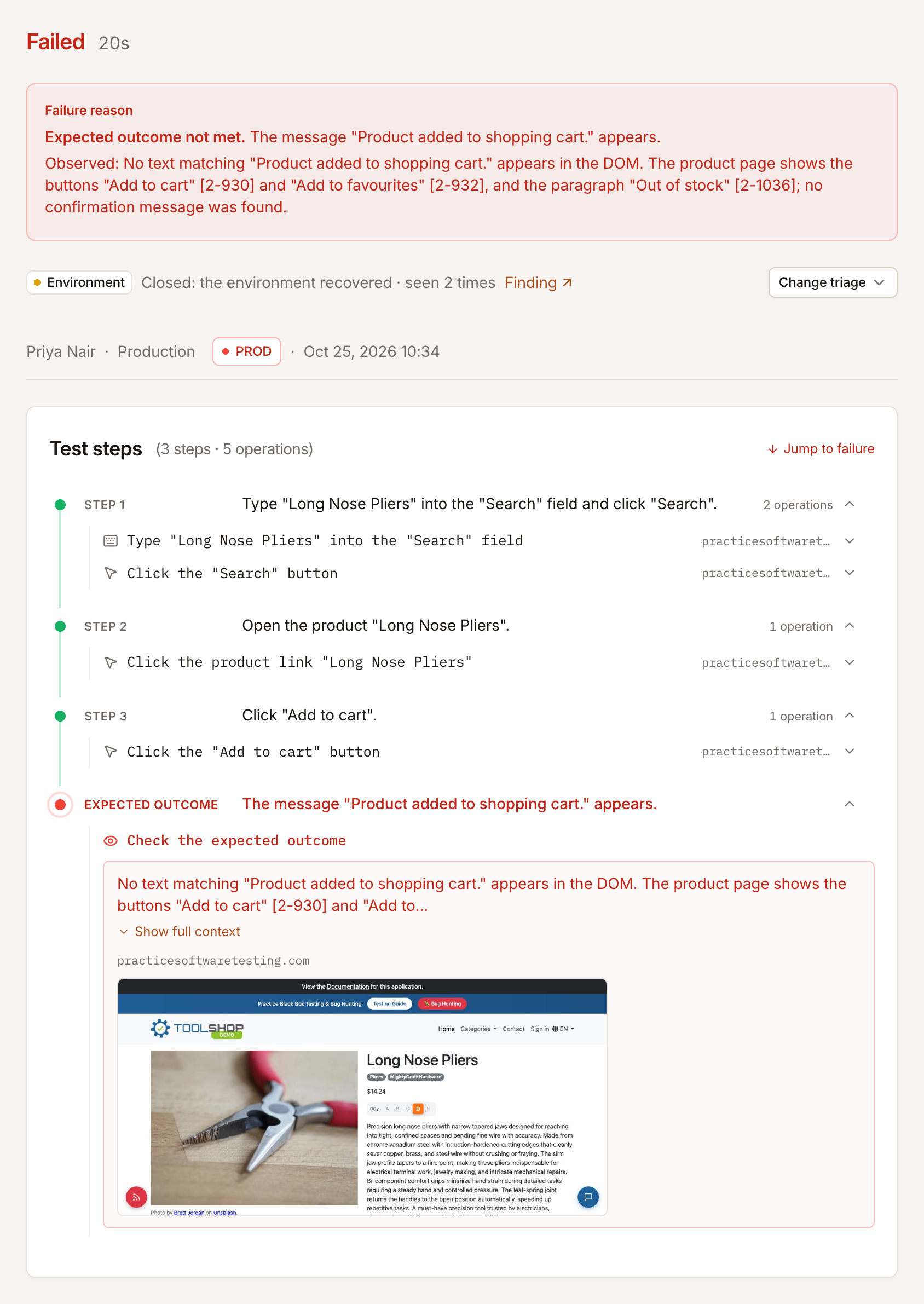
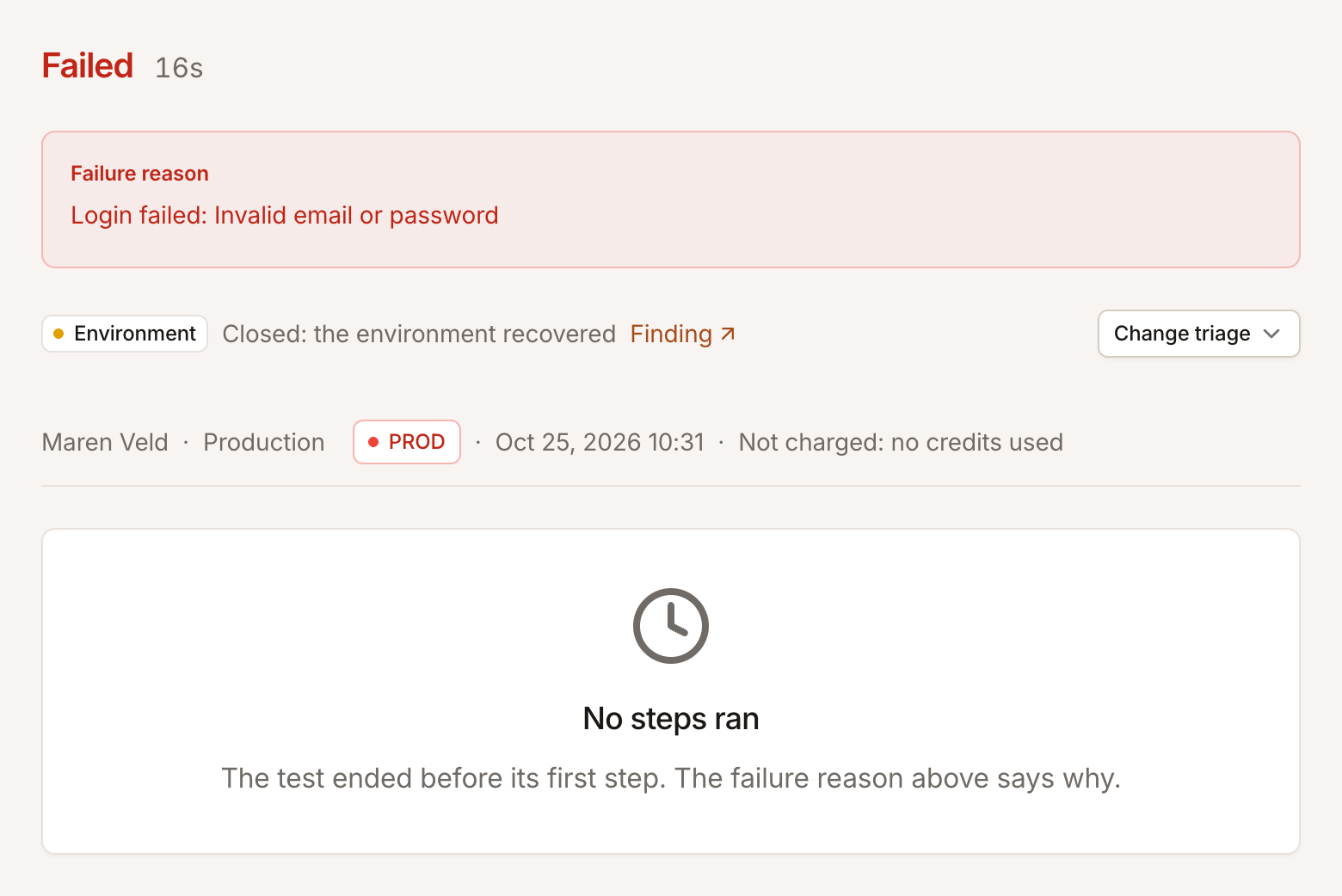
Section titled “Verdict and failure reason”The top shows PASSED or FAILED, the duration and a one-line summary. A failed test has a Failure reason in one of these forms:
| Failure reason | Meaning |
|---|---|
| Failed at step N (operation): what went wrong | An operation of step N failed: no element matched, a wait timed out, a check was false. |
| Expected outcome not met. Your outcome. Observed: … | Every step ran, but the page didn’t match the Expected Outcome. |
| Login failed: … | Automatic login failed before step 1. Not charged. |
| A message about Testmode’s AI model or browser | A failure on our side. Retried first, and not charged. |
Below the reason, a line shows the failure’s finding: Nobody has looked at this failure yet, or what it turned out to be and who said so. Triage answers it from here.
The screenshot of the failure
Section titled “The screenshot of the failure”When an operation fails, Testmode takes a screenshot of the page at that moment. It shows on the failed operation in Test steps; click it to see it larger. Screenshots are kept for 90 days.
Session replay
Section titled “Session replay”Session replay plays back the recording of the test’s browser, from the first page to the verdict. Use it to see how the page got to where it failed. Show in replay on an operation jumps to the moment it ran. Recordings are kept for 31 days.
Live browser view
Section titled “Live browser view”While a test runs, editors see its browser live under Live browser view. Viewers see the steps fill in, and the replay once the test has finished.
Test steps
Section titled “Test steps”Test steps lists your steps in order, each with the operations it ran: typing into a field, clicking a button, waiting for a heading, checking a statement. Each operation shows its outcome and the page it ran on; open it for details such as the statement that was checked and what the page showed. The last group is the Expected outcome check.
- Jump to failure scrolls to the failed operation.
- A step’s text is shown as it read when the run executed, even if the test case changed since.
- Values of variables are shown filled in.
When a test ends before its first step, for example because login failed, Test steps says “No steps ran” and the failure reason says why.
Console and network
Section titled “Console and network”At the bottom, Console and Network show the browser’s console messages and network requests during the test. See Console and network logs.
From a result to the test case
Section titled “From a result to the test case”Edit test case (or View test case for Viewers) in the header opens the test case, to fix it. Re-run runs this test again; Re-run on the run in Runs runs all of its tests again.