A credential is a username and password for your app, stored in Testmode. When a test case has a credential, Testmode signs in before the test starts, so your steps can begin on a logged-in page and never need to type a password.
You manage credentials for the current project under Settings > Credentials. Every member can see the list. Adding, editing and deleting credentials needs the Editor role or above, and Viewers don’t see those buttons.
Add a credential
Section titled “Add a credential”Before you start: you need the Editor role or above.
-
Open Settings in the sidebar and click the Credentials tab.
-
Click Add Credential.
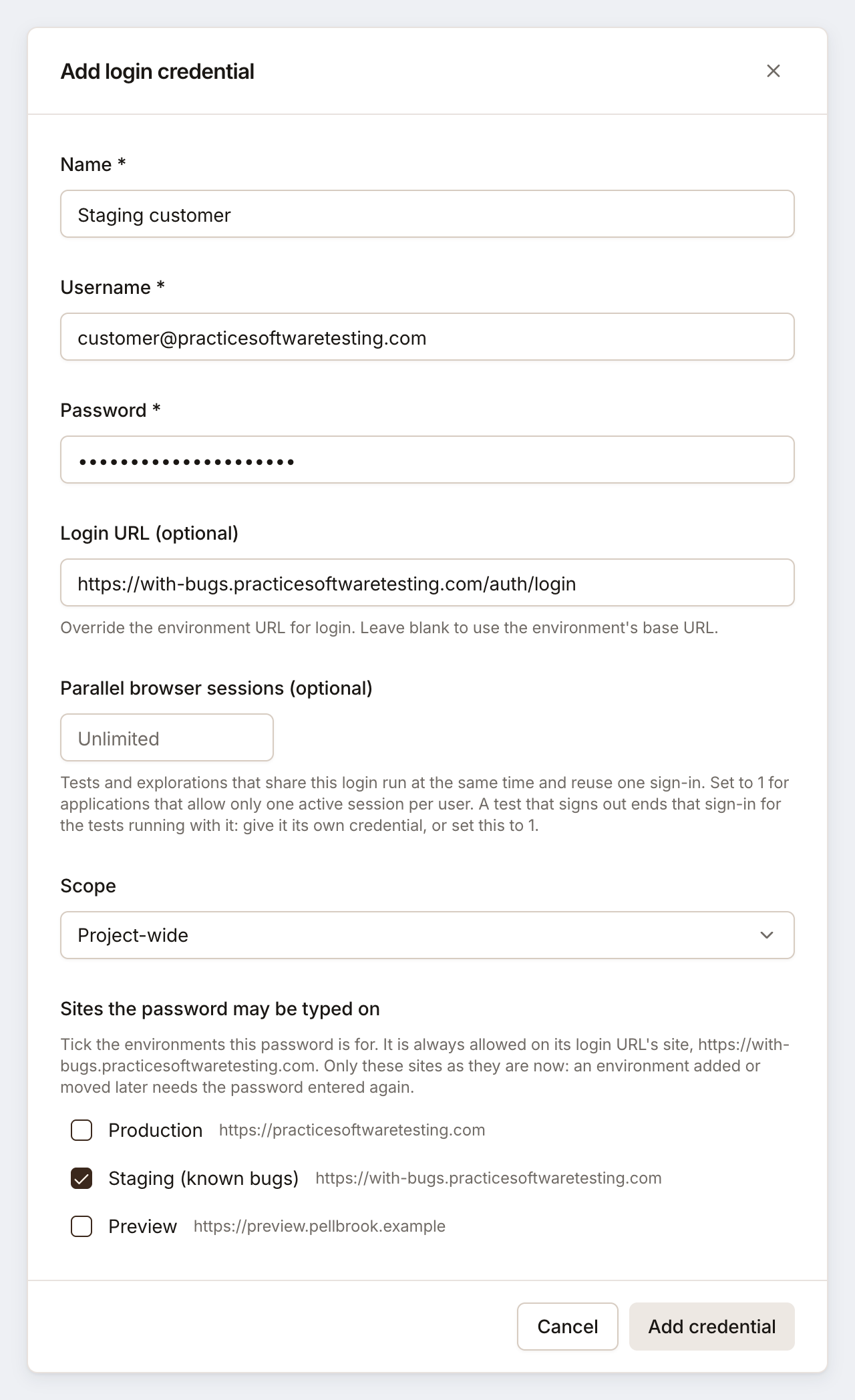
The Add Login Credential dialog opens.
-
Fill in the fields (see the table below).
-
Click Add Credential.
Testmode shows “Credential added”. The list shows the name, the username, ******* in place of the password, the Login URL and the scope. If you set a session limit, a badge such as “1 session at a time” or “3 parallel sessions” appears too.

| Field | What to enter | Toolshop example |
|---|---|---|
| Name | A label your team recognizes. Must be unique within its scope. | Jane Doe – demo customer |
| Username | The email address or username the login form expects. | customer@practicesoftwaretesting.com |
| Password | The password. It is stored encrypted and never shown again. | (hidden) |
| Login URL (optional) | The page with the login form. Must start with http:// or https://. Leave it blank to log in at the test’s start page. |
https://practicesoftwaretesting.com/auth/login |
| Parallel browser sessions (optional) | How many browsers may use this login at the same time: a whole number from 1 to 50. Leave it empty for no limit. See Limit parallel sessions. | (empty) |
| Scope | Project-wide or a single environment, such as Production only. It cannot be changed later. | Project-wide |
If saving fails, the error tells you why:
| Message | What to do |
|---|---|
| “A credential with this name already exists in this scope” | Pick another name, or edit the existing credential. |
| “Login URL must start with http:// or https://” | Enter the full address, including https://. |
| “Parallel browser sessions must be a whole number between 1 and 50, or empty” | Enter a number from 1 to 50, or clear the field. |
| “You need the Editor role or above to manage credentials” | You need the Editor role or above. See Roles and permissions. |
What Scope does
Section titled “What Scope does”Scope files a credential under the whole project or under one environment. It does three things:
- Labels the credential. The list and the Login Credential picker show the environment name or Project-wide.
- Separates names. A name must be unique within its scope, so
Admincan exist once project-wide and once as Staging (known bugs) only, but not twice project-wide. - Ties the credential to its environment. Deleting that environment also deletes the credentials scoped to it.
Scope does not limit where a credential is used. The picker lists every credential in the project, and a test uses the credential it has on whichever environment you run it against. If a staging login must never reach production, keep it out of the tests you run on production.
Attach a credential to a test case
Section titled “Attach a credential to a test case”Before you start: you need the Editor role or above to save test cases.
-
On the Test Cases page, click the test case to open it.
-
Under Login Credential, click the picker (it reads None (no login) when empty).
-
Search by name or username, or scroll, then click the credential. Each one shows its scope.
-
Click Save Changes (or Create for a new test case).
Below the picker, Testmode confirms “Will log in as” followed by the username. To remove the login, click the X on the credential badge or choose None (no login).
For the Toolshop, the test case “Sign-in lands on My account” uses Jane Doe – demo customer with the Start Path /account. Its only step checks the page, because Testmode has already signed in:
Look at the page heading and the navigation menu. Do not click "Sign out".Do not write login steps in a test case that has a credential. See Write a test case for the rest of the editor.
How automatic login works
Section titled “How automatic login works”You set the credential; Testmode does the signing in. Each test runs in its own cloud browser, and all tests and explorations with the same credential share one saved login: the cookies and the site’s local and session storage that Testmode keeps after a successful sign-in.
-
Testmode loads the saved login, if there is one. It puts the saved login into the browser before any page opens, then opens the test’s start page (the environment’s Base URL plus the test case’s Start Path). It looks for signs that the user is signed in, such as an account name or a sign-out link. If the user is signed in, it skips to step 4.
-
Otherwise, one test signs in. Only one test or exploration signs in with a credential at a time. Other tests with the same credential stay in, or go back to,
Queuedand wait, then start with the new saved login. If a saved login no longer works, Testmode discards it and signs in again in the same browser. -
An AI agent logs in. It goes to the credential’s Login URL, or to the test’s start page when that field is empty. It opens the login form if needed (for example by clicking Sign in in the header), dismisses a cookie banner if one is in the way, types the username and password, and submits. It is also instructed to handle forms that ask for the username and the password on separate screens. After a successful login, Testmode saves the login for the tests that follow.
-
The test starts. On the test’s start page, which Testmode opens again after a login, the agent works through your steps as the signed-in user.
While a test waits for another test to sign in, the run page shows “Waiting for another test to sign in with the same credential” or a message such as Waiting for the login on credential "Jane Doe – demo customer". In the Toolshop’s Checkout regression plan, “Sign-in lands on My account” and “Checkout with cash on delivery” both use Jane Doe – demo customer. If there is no saved login yet when the plan runs, one of them signs in and the other starts with the login it saved.
When login fails
Section titled “When login fails”If Testmode cannot sign in, the test is marked Failed with a summary that starts “Login failed:” followed by the reason. Your steps do not run, Test Steps shows “No Steps Recorded”, and the credits reserved for that test are returned. Testmode removes the username and password from the message. It does not retry a failed login.
Each login attempt also has a time limit. A login page that is too slow or never finishes gives “Login failed: Login timed out after” followed by the limit.
The login itself is never recorded as actions in Test Steps, whether it succeeds or fails.
If a test signs in but later reaches a login page mid-test, for example because the session expired or a step clicked Sign out, the test stops and fails, usually with “Session expired or login required”. If that test was using the saved login, Testmode discards it, so the next test with the credential signs in again.
Automatic login types a username and a password. It cannot complete MFA, one-time codes or CAPTCHAs, and logins that redirect to another domain, such as “Sign in with Google”, are not guaranteed to work. See Troubleshoot automatic login and What Testmode can and cannot test.
Limit parallel sessions
Section titled “Limit parallel sessions”Tests that share a credential run at the same time and reuse one sign-in. Some apps allow only one active session per user and sign the other browsers out, and those tests then fail with “Session expired or login required”. A session limit keeps those tests from overlapping.
Before you start: you need the Editor role or above.
-
Open Settings > Credentials and click the pencil on the credential.
-
In Parallel browser sessions (optional), enter a number from 1 to 50. Enter
1for an app that allows one active session per user. -
Click Save Changes.
The credential shows a badge, such as “1 session at a time”. What changes:
- Extra tests wait. A test that would go over the limit stays
Queued, and the run page showsLogin limit for credential "Jane Doe – demo customer" reached. It starts when a session with the credential frees up. - Explorations count too. An exploration that uses the credential takes up one session while it is
ExploringorProbing. - A limit of 1 means one at a time. Tests that use the credential then run one after another instead of side by side.
To remove the limit, clear the field and save.
Log in as someone else in a plan
Section titled “Log in as someone else in a plan”A test plan can run a test case as a different user without changing the test case. For example, the Checkout regression plan could run “Sign-in lands on My account” with a different customer.
Before you start: you need the Editor role or above, and the test case must already be in the plan.
-
Open the test plan on the Test Plans page and stay on its Test Cases tab.
-
Hover the test case’s row and click the settings icon (two sliders).
The Configure Test Case dialog opens.
-
Under Credential Override, choose a credential. Use default keeps the test case’s own login and shows its name.
-
Click Save.
Testmode shows “Configuration saved”, and the row shows an Override badge.

How overrides behave:
- The override applies only when this plan runs, manually or on a schedule. Running the test case on its own, or in another plan, uses the test case’s own credential.
- Testmode fixes each test’s credential when the run is created. Changing an override or a test case’s credential later does not affect runs already queued.
- An override can swap one login for another, but it cannot turn login off for a test case that has its own credential.
Change a password
Section titled “Change a password”Before you start: you need the Editor role or above.
-
Open Settings > Credentials and click the pencil on the credential.
-
In Password (leave blank to keep current), type the new password. Leave it empty to keep the stored one.
-
Change the name, username, Login URL or session limit if needed. Scope is locked: “Scope cannot be changed after creation”.
-
Click Save Changes.
Testmode shows “Credential updated”.
Delete a credential
Section titled “Delete a credential”Before you start: you need the Editor role or above.
Click the trash icon on the credential, then Delete in the Delete credential? dialog. Testmode shows “Deleted”.
The stored password and the saved login are deleted, and the credential is cleared from every test case, plan override and exploration that used it. Those test cases then run without a login, and a plan item whose override was removed falls back to its test case’s own credential.
Good to know
Section titled “Good to know”- Passwords are write-only. Nobody can view a stored password in Testmode, including the person who saved it.
- Leading and trailing spaces are removed from the name, username and password when you save.
- To test a failed login on purpose, do not attach a credential. Write the steps instead, and use an address the site does not know, such as
nobody.demo@example.comon the Toolshop.