Manage your organization and team
Rename your organization, invite members, change roles and remove people, limit who can join to your email domains, and create more organizations for other teams or brands.
Organization settings has three tabs: General for the name and allowed email domains, Members for people and invitations, and Billing for the plan. Open them from the organization menu: click the organization’s name at the top of the sidebar, then Organization settings. Only Admins and Owners see it.
Invite members
Section titled “Invite members”-
Open Organization settings > Members and click Invite member.
-
Enter their Email address and choose a Role: Admin, Editor or Viewer.
-
Click Send invitation.
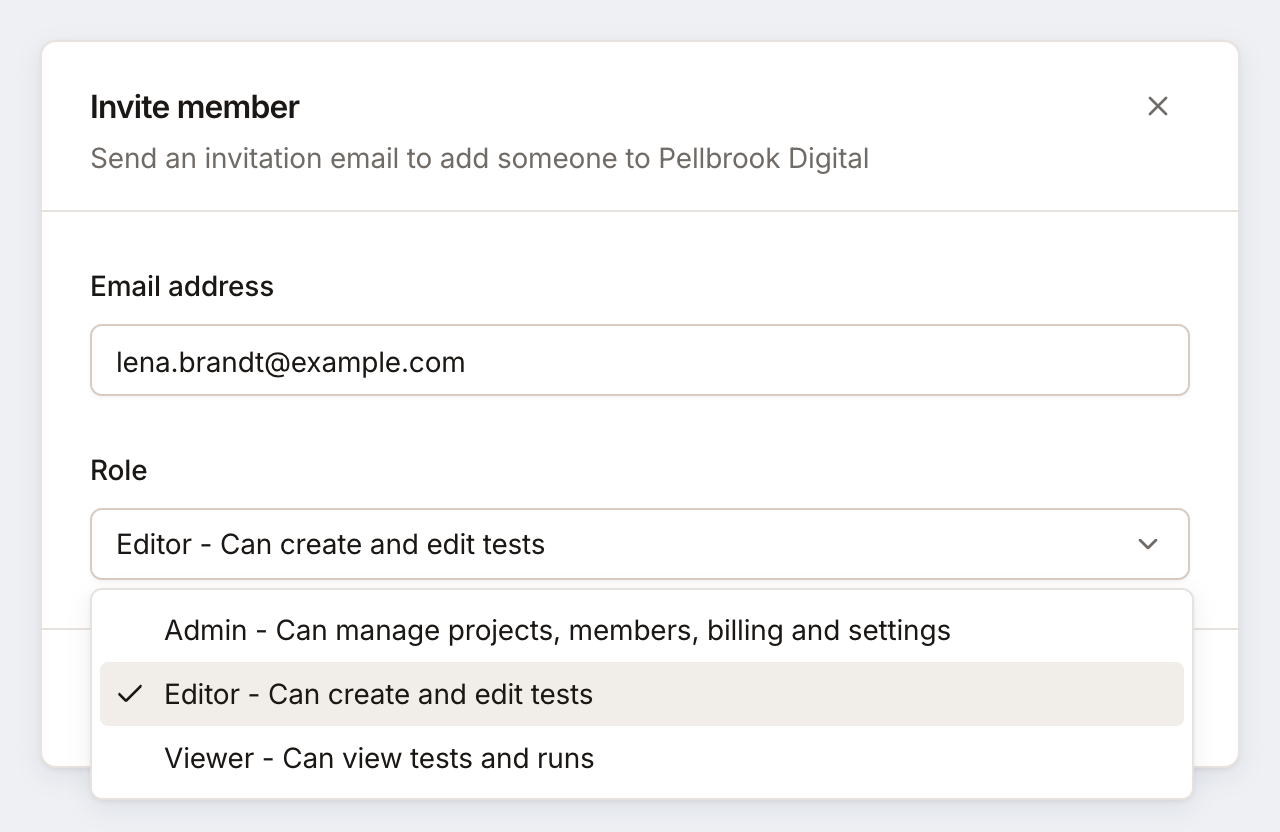
The invitee gets an email with a link and joins when they click Join. See Accept an invitation. Pending invitations are listed under Pending invitations, where you can resend or cancel them; they expire after 7 days. Members are free and unlimited on every plan.
Change roles and remove members
Section titled “Change roles and remove members”The Members list shows everyone with their role. Change a role with the select on the member’s row, and remove a member with the button next to it (Remove from organization).
- Owners can change or remove anyone else, Owners included, and make someone an Owner, after a confirmation.
- Admins can change or remove anyone who isn’t an Owner, and give any role but Owner.
- Your own row can’t be changed by you; another Owner or Admin changes it. The last Owner can’t be demoted or removed while others remain.
A removed member loses access at once; what they made stays: tests, plans, schedules and runs. Their API keys stop working, and invitations they sent that nobody accepted yet are deleted. They can be invited again. See Roles and permissions.
To leave an organization yourself, click Leave on your own row. The only Owner can’t leave until someone else is an Owner.
Rename the organization
Section titled “Rename the organization”On General, change the Organization name and click Save changes.
Allowed email domains
Section titled “Allowed email domains”Limit who can join to addresses on your own domains, so an invitation can’t end up with a personal address by mistake.
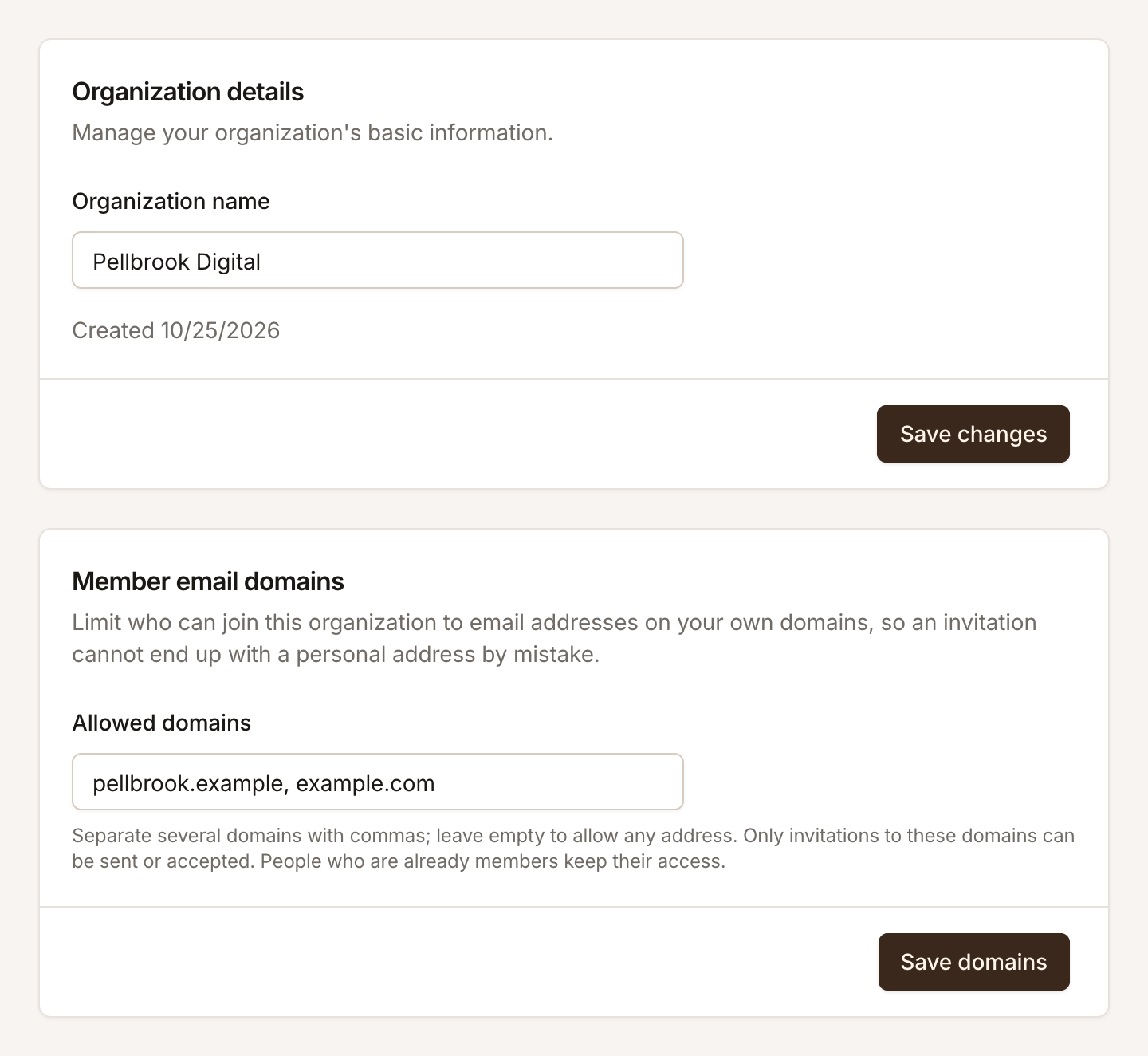
On General, under Member email domains, list the domains in Allowed domains, separated by commas, such as acme.com, acme.io, and click Save domains. From then on:
- Invitations to other addresses are refused, with a message naming the allowed domains. The rule is enforced by Testmode’s servers, not only by the form.
- Pending invitations to other addresses can no longer be accepted. They stay in the list, marked as outside the allowed domains, until you cancel them or change the list.
- Existing members keep their access. The list is about who can join, not who is in.
- Report emails only go to addresses on those domains.
A domain admits that exact domain only: acme.com doesn’t admit mail.acme.com; list both if you need both. Leave the field empty to allow any address.
Several organizations
Section titled “Several organizations”You can belong to any number of organizations, with a role in each. The organization menu at the top of the sidebar lists them, with your role in each, and switches between them.
To create another one, for another team, brand or client, open the organization menu and click New organization. Setup asks for its name, invitations, first project and plan. Each organization has its own members, projects and plan, and the Pro trial is offered once per organization. Your Free credits go only to the first organization you create, so choose a plan for the others.