Buy credits and read billing history
The Billing tab in Organization Settings shows how many credits your organization has, what expires next and every credit that came in or went out. Owners and Admins buy credit packs and open invoices and receipts there.
For how a run’s cost is worked out, see How credits work. For prices, see Pricing.
Open Billing
Section titled “Open Billing”Before you start: you need the Owner or Admin role. Editors and Viewers see the balance at the bottom of the sidebar, but the organization menu does not offer them Organization Settings or Billing & credits, and opening the Billing address directly sends them to Overview.
-
Click the organization button at the bottom of the sidebar. It shows the organization’s name and its balance.
-
Choose Billing & credits.
Organization Settings opens on the Billing tab.
You can also choose Organization Settings from the same menu and click the Billing tab.
Read the Credits card
Section titled “Read the Credits card”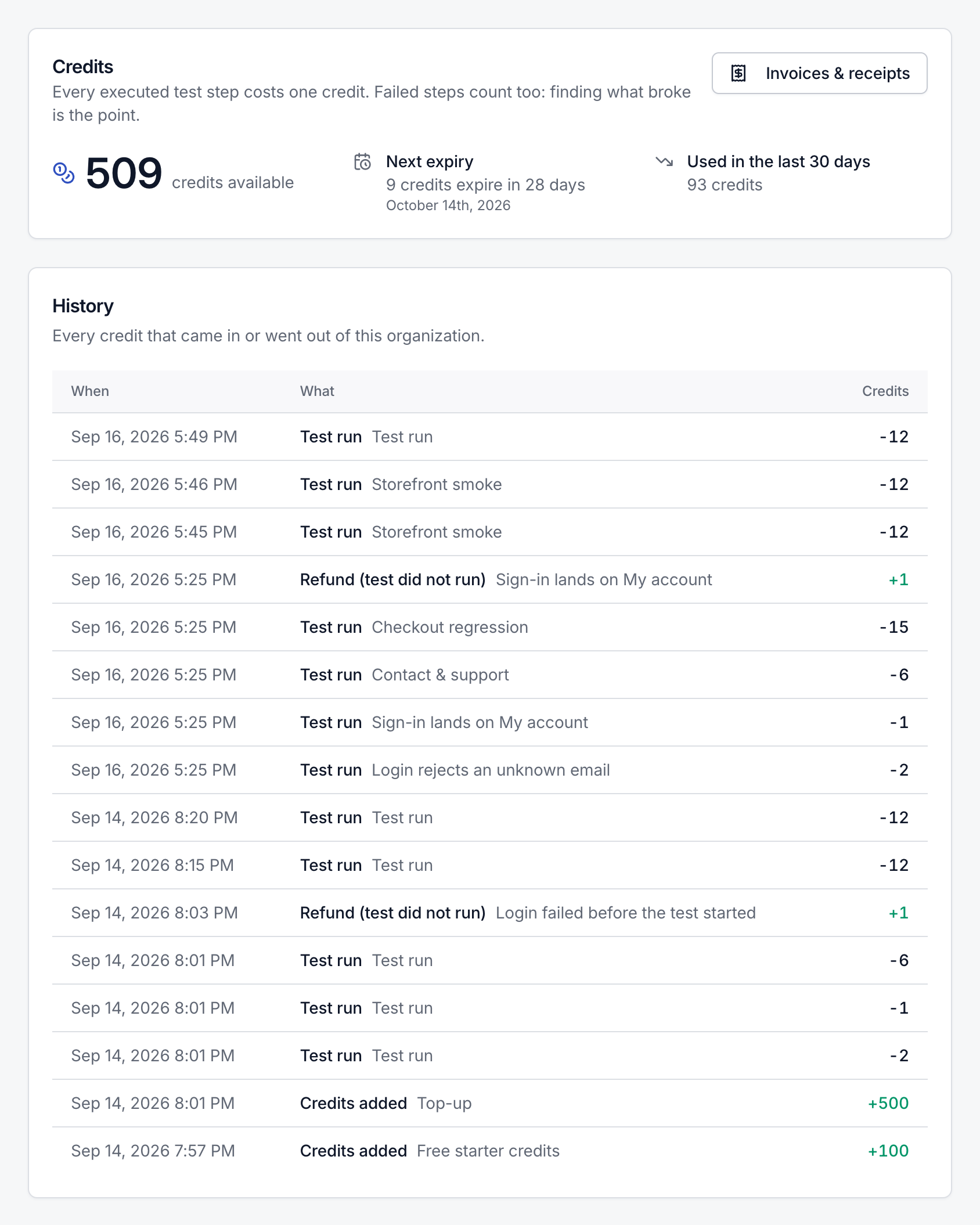
| Item | What it shows |
|---|---|
| Balance | The credits your organization can spend now, as “N credits available”. Expired credits are not counted. |
| Next expiry | How many credits expire next and when, such as “N credits expire in X days” with the date underneath. With nothing due to expire, it reads “Nothing expiring”. |
| Used in the last 30 days | Credits reserved by runs in the past 30 days. Credits returned for tests that never ran are not subtracted. |
When the balance runs low, the card shows an amber warning: “Running low. Buy credits to keep tests running.” At zero it reads “No credits left. Test runs are paused until you buy more.”
Buy credits
Section titled “Buy credits”Before you start: you need the Owner or Admin role.
The Buy credits card lists the credit packs on sale. Each pack shows its name, how many credits it adds, its price and the price per credit, and, when set, how long its credits stay valid (“Valid for N days”). A pack that renews shows Monthly or Yearly, and each paid renewal adds its credits again.
-
On the Billing tab, find Buy credits and click Buy on the pack you want.
Testmode sends you to the payment provider’s hosted checkout page.
-
Complete the payment.
The payment provider sends you back to the Billing tab, which shows “Confirming your payment…”.
-
Wait for the confirmation.
Testmode shows “Payment received” and “N credits added to your organization.” The new credits count toward the balance straight away.
If the confirmation takes longer, Testmode shows “Payment is still being confirmed”. The credits appear on the Billing tab as soon as the payment provider confirms the order.
Good to know:
- Purchased credits expire, like all credits. Before you buy, check whether the pack shows “Valid for N days”. Credits from a renewing pack without that line expire at the end of the billing period they were added for. See Expiry.
- Credits belong to the organization, not to the person who bought them.
- Leaving the checkout without paying: its return link brings you back to the Billing tab. No credits are added.
- No packs listed? The card says why:
- “Credit packs are not available yet.” Buying credits is not set up yet.
- “No credit packs are on sale right now.” There is nothing to buy at the moment.
- “Credit packs could not be loaded right now. Please try again later.” The packs could not be fetched. Reload the page later to try again.
- Checkout does not start? Testmode shows “Could not start checkout” with the reason, such as “Billing is not available right now. Try again later.”
Invoices and receipts
Section titled “Invoices and receipts”Before you start: you need the Owner or Admin role. Only Owners and Admins can open the billing portal.
Click Invoices & receipts on the Credits card. The organization’s billing portal opens in a new browser tab, with its orders, invoices and receipts.
- Before the organization’s first purchase there is nothing to show, and Testmode says “Invoices appear here after your first purchase.”
- When billing is unavailable, Testmode says “Billing is not available right now. Try again later.”
- The portal opens in a new tab, so a pop-up blocker can stop it. Allow pop-ups for Testmode if nothing opens.
- The portal belongs to the organization, so any Owner or Admin sees the same orders.
Credit history
Section titled “Credit history”The History card lists every credit that came into or went out of the organization, newest first, in the columns When, What and Credits. Credits added show as +N, credits taken as -N.
| What | Meaning |
|---|---|
| Credits added | Credits added to the organization, followed by where they came from, such as a pack name. |
| Test run | Credits reserved when a run started, with a link to the run. |
| Refund (test did not run) | Credits returned for a test in that run that ended before the agent took an action, with a link to the run. |
| Credits expired | The unused credits of a batch that reached its expiry date. |
| Refunded order | Unused credits removed because a purchase was refunded. Credits already spent are not taken back. |
Good to know:
- Only the 50 most recent entries are shown. There is no export or paging.
- One run can appear on more than one row. When a run’s credits come from more than one batch, each batch gets its own Test run row. Add them up, minus any Refund (test did not run) rows for that run, to get what the run cost.
- With no activity yet, the card reads “No activity yet.”
When credits run out
Section titled “When credits run out”At zero, the Credits card reads “No credits left. Test runs are paused until you buy more.”
- Runs you start are blocked. The Run tests dialog disables Run and points Owners and Admins to Buy credits.
- Scheduled runs are skipped. Each one is recorded as a
Skippedrun, is not charged and sends no email report. - New explorations can’t be started. Testmode refuses with “Your organization has no credits left. Buy credits to start an exploration.” An exploration already in progress is not stopped.
- After you buy credits, new runs and explorations start normally and schedules run at their next time. Skipped runs are not retried.
See When there are not enough credits.
Related
Section titled “Related” testmode
Better software quality. No manual testing. Your team knows the software. Testmode does the testing.